Draft review request emails for recent box subscribers
Every morning, WebRun opens Subbly, finds orders fulfilled three to five days ago, checks each customer has not already been asked for a review, and creates a personalised draft email in Gmail asking them to leave feedback on their box.
- No credit card
- Under $0.01 per run
- Cancel anytime
How do I automatically draft review request emails for my subscription box customers?
Every morning, WebRun opens Subbly to find orders fulfilled three to five days ago, then creates a personalised draft review-request email in Gmail for each customer, referencing their specific box. No email is ever sent automatically. You approve and send each draft, keeping you in control of every customer touchpoint.
- Every fulfilled order gets a personalised review request draft ready to send
- No customer is emailed without your explicit approval
- Duplicate requests to the same customer are skipped automatically
Built for subscription box owners · e-commerce customer success teams · subscription brand managers
What does WebRun do on every run?
The exact actions WebRun takes, in order - in plain language, so you can adjust anything.
-
WebRun signs in and gets to work
Opens
subbly.co/managein a real browser with your saved login - no setup, no API keys. -
1
Subbly - find recently fulfilled orders
subbly.co How to Automate Subbly
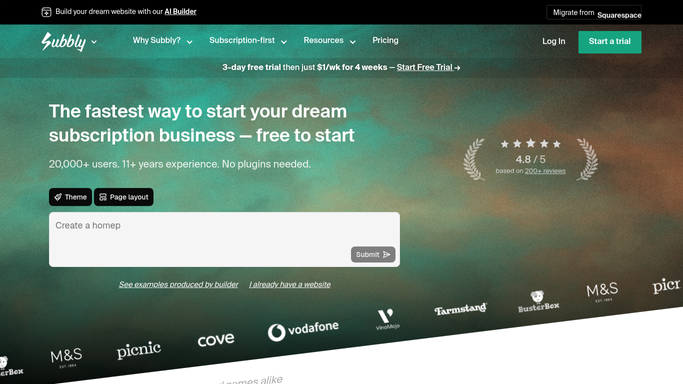
WebRun opens Subbly to find recently fulfilled orders. - Open Subbly and filter Orders to Fulfilled status within the last three to five days
- Collect the customer name, email address, box name, and fulfilment date for each order
- Skip any customer who has already received a review request in the current period
Done when A list of eligible customers is ready with their names, email addresses, and box details.
-
2
Gmail - draft personalised review request emails
gmail.com How to Automate Gmail

WebRun opens Gmail to draft personalised review request emails. - Open Gmail and create a new draft for each eligible customer
- Address the draft to the customer's email, use their first name in the greeting, and reference the specific box they received
- Include a clear call to action and a link or instructions for leaving a review
- Save every email as a draft and never send it. Leave all drafts for your review before sending
Done when A personalised draft review request email exists in Gmail for every eligible fulfilled order.
How is each run configured?
Secure by default
Connect once, stays signed in
WebRun signs in once and keeps each session in a persistent environment, so every run picks up right where it left off.
Every action is checked against this policy before it runs.
Questions, answered
Will it send review request emails automatically to customers?
No. WebRun creates every email as a Gmail draft and never sends anything. You review and approve each draft before it leaves your inbox, so no customer is contacted without your sign-off.
Will it ask the same customer twice?
It checks each run whether a customer has already received a request this cycle and skips them if so, preventing duplicate review requests.
Can I customise the email tone and content?
Yes. You provide a template or tone guidelines during setup and WebRun follows them when composing each draft. You can edit any draft before sending.
Related templates
Put this on autopilot.
Turn it on in minutes - or have our team set it up for you.