Draft winback emails for subscribers at risk of cancelling
Every Monday, WebRun opens Subbly, identifies subscribers who paused, skipped a box, or downgraded their plan in the last seven days, then drafts a personalised winback email for each in Mailchimp so your team can review and approve before anything is sent.
- No credit card
- Under $0.01 per run
- Cancel anytime
How do I automatically draft winback emails for subscription box subscribers at risk of cancelling?
Every Monday, WebRun opens Subbly to find subscribers who paused, skipped, or downgraded in the past seven days, then creates a personalised winback draft in Mailchimp for each one. No email is sent automatically. Your team reviews and approves every draft before any subscriber is contacted, keeping your brand voice consistent.
- At-risk subscribers are identified within days of their pause or downgrade
- Every winback draft is personalised with the subscriber's plan details and tenure
- No subscriber is emailed without your team's explicit approval
Built for subscription box owners · subscription retention teams · e-commerce CRM managers
What does WebRun do on every run?
The exact actions WebRun takes, in order - in plain language, so you can adjust anything.
-
WebRun signs in and gets to work
Opens
subbly.co/managein a real browser with your saved login - no setup, no API keys. -
1
Subbly - find paused and at-risk subscribers
subbly.co How to Automate Subbly
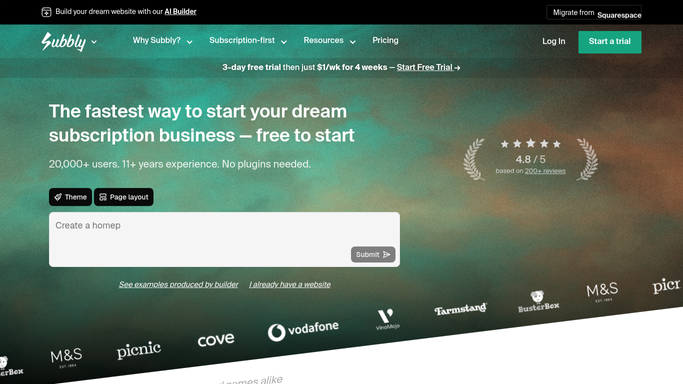
WebRun opens Subbly to find paused and at-risk subscribers. - Open Subbly and navigate to Subscribers
- Filter to accounts that paused, skipped, or downgraded in the last seven days
- Collect the subscriber name, email, subscription plan, and the specific action they took
- Note how long each subscriber has been active and how many boxes they have received
Done when All at-risk subscribers from the past week are listed with their details and churn signals.
-
2
Mailchimp - draft personalised winback emails
mailchimp.com How to Automate Mailchimp
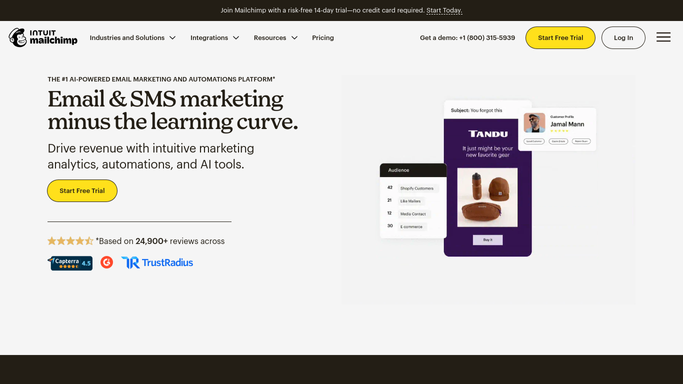
WebRun opens Mailchimp to draft personalised winback emails. - Open Mailchimp and create a draft campaign or individual email for each at-risk subscriber
- Personalise the subject line and body with the subscriber's name, plan, and tenure
- Suggest a relevant incentive or message based on why they paused or downgraded
- Save each as a draft and do not schedule or send. Leave every draft for your team to review
Done when A personalised draft winback email is saved in Mailchimp for every at-risk subscriber identified.
How is each run configured?
Secure by default
Connect once, stays signed in
WebRun signs in once and keeps each session in a persistent environment, so every run picks up right where it left off.
Every action is checked against this policy before it runs.
Questions, answered
Will it send winback emails to subscribers without my approval?
No. Every email is saved as a Mailchimp draft and never scheduled or sent. Your team reviews and approves each one before any subscriber is contacted.
How does it decide who is at risk of churning?
It looks for specific Subbly actions: a pause, a skipped box, or a plan downgrade in the past seven days. You can adjust the signals during setup.
What if a subscriber has already re-activated before Monday?
The run checks live Subbly status, so anyone who already re-activated is excluded from the draft list automatically.
Related templates
Put this on autopilot.
Turn it on in minutes - or have our team set it up for you.