Turn completed serves into QuickBooks invoices without manual entry
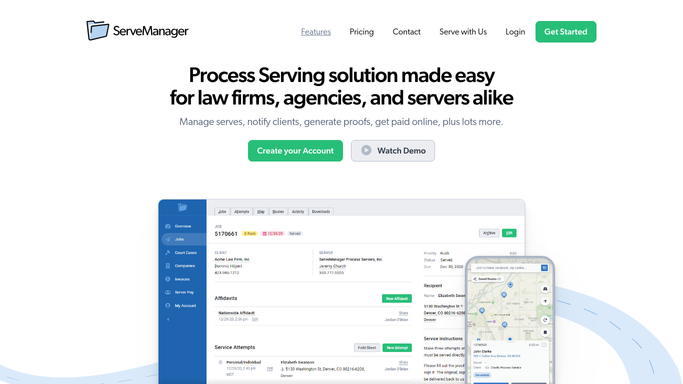
Every morning, WebRun opens ServeManager, finds jobs completed since the last run, reads the service type, mileage, and any add-on fees logged on each job, opens QuickBooks, and drafts an invoice for the client. Every draft is left unsent for your review so billing is accurate and consistent without double data entry.
- No credit card
- Under $0.01 per run
- Cancel anytime
What does WebRun do on every run?
The exact actions WebRun takes, in order - in plain language, so you can adjust anything.
-
WebRun signs in and gets to work
Opens
www.servemanager.comin a real browser with your saved login - no setup, no API keys. -
1
ServeManager - find newly completed jobs
servemanager.com How to Automate ServeManager

WebRun opens ServeManager to find newly completed jobs. - Open ServeManager and filter jobs to Completed status with a serve date since the last run
- For each job, read service type, serve date, defendant name, client, mileage logged, rush fee, and any add-on charges
- Capture the client billing email and any billing reference number on file
Done when Every newly completed job has its billing detail captured and ready for invoicing.
-
2
QuickBooks - draft invoice for each
- Open QuickBooks and navigate to the Invoices section
- Create a new invoice draft for each completed job using the corresponding client account
- Add line items for service fee, mileage, and any applicable add-ons logged in ServeManager
- Set the due date per your standard terms
- Save each invoice as a draft and leave it unsent for your review
Done when A QuickBooks invoice draft exists for every completed serve, ready for your approval before sending.
How do I automatically create invoices for completed process serves?
WebRun opens ServeManager each morning and finds every newly completed serve. For each one, it reads the service type, mileage, and any add-on fees, then creates a matching invoice draft in QuickBooks with the correct line items. All drafts are left unsent for your review, eliminating manual double entry between your field log and your billing system.
- Every completed serve becomes a QuickBooks invoice draft the next morning
- Rush fees and mileage are pulled directly from ServeManager with no re-entry
- Billing review happens once a day instead of throughout the day
Built for process serving companies · legal support firms · process service billing staff · small process serving firms
How is each run configured?
Secure by default
Connect once, stays signed in
WebRun signs in once and keeps each session in a persistent environment, so every run picks up right where it left off.
Every action is checked against this policy before it runs.
Questions, answered
Will it send invoices to clients automatically?
No. Every invoice is saved as a QuickBooks draft for your review. Nothing is sent to a client until you approve and send it from QuickBooks.
What happens if a completed job is missing billing information?
WebRun flags the job and skips drafting an invoice for it. A note is included in the run summary so your team can fill in the missing detail before billing.
Does it handle rush fees and mileage automatically?
Yes. It reads the mileage, rush flag, and any add-on charges logged directly on the job in ServeManager and adds them as separate line items on the invoice draft.
Related templates
Put this on autopilot.
Turn it on in minutes - or have our team set it up for you.