Chase missing certificates of analysis so shipments clear QA on time
Every morning, WebRun opens Wherefour, finds all recently received raw material lots that have no certificate of analysis document attached, looks up the supplier contact email for each lot, drafts a professional COA request email in Gmail for each missing document, and logs every outstanding COA to a Google Sheet so your QA team can track resolution without managing a manual spreadsheet.
- No credit card
- Under $0.01 per run
- Cancel anytime
What does WebRun do on every run?
The exact actions WebRun takes, in order - in plain language, so you can adjust anything.
-
WebRun signs in and gets to work
Opens
app.wherefour.comin a real browser with your saved login - no setup, no API keys. -
1
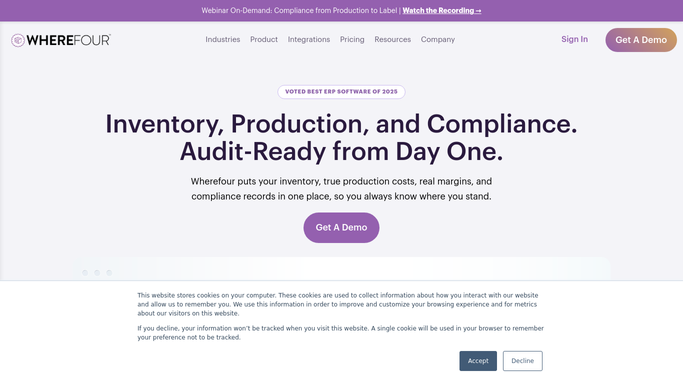
Wherefour - find received lots with no COA attached
wherefour.com How to Automate Wherefour

WebRun opens Wherefour to find received lots with no COA attached. - Open Wherefour and navigate to recently received purchase order receipts
- Filter to lots received in the last 14 days that have no COA document attached under their compliance documents
- Capture lot number, item name, vendor name, vendor contact email, received date, and quantity for each
- Skip lots already chased for a COA within the past 48 hours
Done when All recently received lots with missing COAs are listed with supplier contact details.
-
2
Gmail - draft COA request emails to suppliers for review
gmail.com How to Automate Gmail
WebRun opens Gmail to draft COA request emails to suppliers for review. - Draft a professional COA request email for each lot with a missing document
- Address the email to the supplier contact email from the Wherefour vendor record
- Include the lot number, item name, received date, and your QA portal upload link in the body
- Leave each email as a draft in Gmail for your QA team to review before sending. Do not send automatically.
Done when A review-ready draft COA request email exists in Gmail for each lot missing a certificate of analysis.
-
3
Google Sheets - log outstanding COAs for QA team tracking
google.com How to Automate Google Sheets
WebRun opens Google Sheets to log outstanding COAs for QA team tracking. - Open the designated COA Chase Tracker Google Sheet
- Upsert a row for each outstanding lot: lot number, item name, vendor, received date, days outstanding, and chase status
- Mark rows where the lot has been on the chase list for more than 5 days as overdue
- Remove rows for lots where a COA has since been attached in Wherefour
Done when The COA Chase Tracker sheet is updated with all outstanding lots, days outstanding, and overdue flags.


How do I automatically chase missing certificates of analysis from suppliers for food manufacturing?
Every morning, WebRun scans Wherefour for raw material lots received in the past 14 days with no certificate of analysis attached, drafts a professional COA request email in Gmail per supplier for QA team review, and logs every outstanding lot to a Google Sheet with days-outstanding and overdue flags so your team can track resolution without managing a manual chase list.
- QA team starts each day with a complete list of lots missing COAs and days outstanding
- Supplier request emails are drafted and ready to send in one QA review pass
- Overdue lots flagged after 5 days so escalation happens before production is blocked
Built for food manufacturers · beverage producers · co-packers · quality assurance teams · regulatory compliance managers
How is each run configured?
Secure by default
Connect once, stays signed in
WebRun signs in once and keeps each session in a persistent environment, so every run picks up right where it left off.
Every action is checked against this policy before it runs.
Questions, answered
Will it automatically email suppliers requesting a COA without QA review?
No. Every COA request email is drafted in Gmail and left for your QA team to review before sending. Nothing goes to a supplier without a human approving the message first.
What if the same lot has been chased multiple times with no response?
Lots outstanding for more than 5 days are flagged as overdue in the Google Sheet so your QA manager can escalate directly. WebRun skips re-drafting a request for lots already chased within the past 48 hours to avoid flooding the supplier.
How does it know the right contact at each supplier?
It reads the supplier contact email from the vendor record stored in Wherefour. If no contact email is on the vendor record, the lot is still logged on the chase sheet with a note that the contact is missing so QA can source it.
Related templates
Put this on autopilot.
Turn it on in minutes - or have our team set it up for you.