Catch out-of-policy claims before you approve them
Every morning, WebRun signs in to SAP Concur, opens the expense reports sitting in your approval queue, reads the exceptions and missing receipt warnings on each line, drafts a polite Gmail query to every submitter whose claim needs a fix, and sends you a WhatsApp summary of what is clean and what is not.
- No credit card
- Under $0.01 per run
- Cancel anytime
How do I review Concur expense reports for policy exceptions before approving?
WebRun opens SAP Concur every morning and reviews the expense reports waiting in your approval queue, reading the policy exceptions and missing receipt warnings on each line. It drafts a Gmail query to every submitter who needs to fix something and WhatsApps you a summary, while approval stays entirely yours.
- Problem claims are queried before approval instead of after payment
- Approvers open the queue already knowing which reports are clean
- Every submitter query is written for you and left as a draft to send
Built for finance managers · expense approvers · controllers · operations teams
What does WebRun do on every run?
The exact actions WebRun takes, in order - in plain language, so you can adjust anything.
-
WebRun signs in and gets to work
Opens
www.concursolutions.comin a real browser with your saved login - no setup, no API keys. -
1
SAP Concur - review reports awaiting approval
concursolutions.com
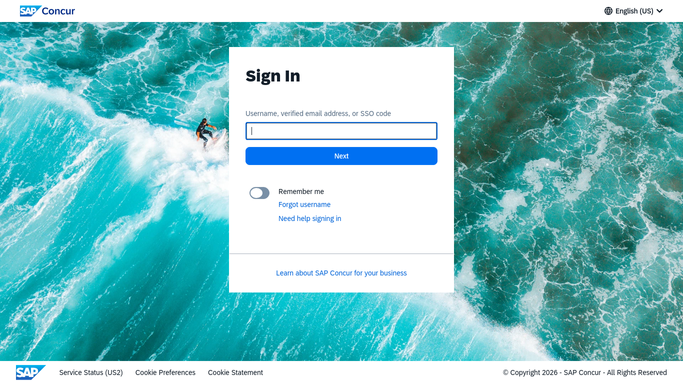
WebRun opens SAP Concur to review reports awaiting approval. - Sign in to SAP Concur and open the reports awaiting your approval
- Open each report and read its total, its submitter, and how long it has waited
- Record every expense line carrying a policy exception or a missing receipt warning
- Note any line above the limits your finance policy sets
- Never approve, reject, or send back a report. Reading only
Done when Every report in the approval queue has been reviewed and its exceptions listed.
-
2
Gmail - draft the query to each submitter
gmail.com How to Automate Gmail

WebRun opens Gmail to draft the query to each submitter. - Compose a short, polite query to each submitter whose report has an exception
- Name the report, the specific line, and exactly what is missing or out of policy
- Keep the tone neutral and factual so it reads as a routine check
- Leave every message in Drafts. Nothing is sent until you read it and press send
Done when A draft query is waiting for every report that needs a fix.
-
3
WhatsApp - summarise the queue for you
whatsapp.com How to Automate WhatsApp

WebRun opens WhatsApp to summarise the queue for you. - Send yourself a short WhatsApp summary of the queue
- Show how many reports are clean and ready, and how many have exceptions
- Name the largest claims and the ones that have waited longest
- Note how many draft queries are waiting in Gmail for your approval
Done when You know the state of your approval queue before you open it.
How is each run configured?
Secure by default
Connect once, stays signed in
WebRun signs in once and keeps each session in a persistent environment, so every run picks up right where it left off.
Every action is checked against this policy before it runs.
Questions, answered
Will it approve or reject expense reports?
No. WebRun only reads the queue. Approving, rejecting, or sending a report back stays entirely with you, because those actions release money and cannot be quietly undone.
Does it email employees on its own?
No. Every query to a submitter is left in Gmail Drafts with the report and line named. You read it, adjust the wording if you want, and send it yourself.
What counts as an exception?
Anything Concur already flags on the line, such as a missing receipt or a policy warning, plus any line above the limits you configure, so your own thresholds decide what gets queried.
Related templates
Put this on autopilot.
Turn it on in minutes - or have our team set it up for you.