Reconcile your Afterpay payouts for you
Every morning, WebRun opens Afterpay, pulls the latest settlement batch, matches each payout against your order log in Google Sheets, and drafts a Gmail note to accounting for any order that doesn't line up.
- No credit card
- Under $0.01 per run
- Cancel anytime
How do I reconcile Afterpay payouts against my orders automatically?
WebRun reconciles your Afterpay payouts every morning by matching each settlement batch against your order log in Google Sheets and drafting a Gmail note to accounting whenever an order and payout don't line up. It never moves money itself, so discrepancies get caught and explained the same day instead of at month end.
- Payout mismatches are caught the same morning, not discovered at month end
- Every settlement batch has a matched, explainable total
- Accounting gets a ready-to-send note instead of a spreadsheet hunt
Built for ecommerce merchants · retail finance teams · bookkeepers · accounting operations
What does WebRun do on every run?
The exact actions WebRun takes, in order - in plain language, so you can adjust anything.
-
WebRun signs in and gets to work
Opens
www.afterpay.comin a real browser with your saved login - no setup, no API keys. -
1
Afterpay - pull the settlement batch
afterpay.com
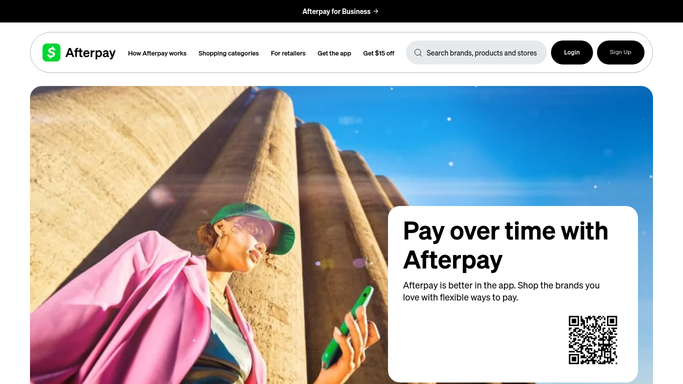
WebRun opens Afterpay to pull the settlement batch. - Open the Afterpay merchant dashboard and pull the latest settlement batch
- Capture the payout total, order references, and any fees deducted
- Note refunds or reversals included in the batch
Done when The settlement batch is captured with every order reference.
-
2
Google Sheets - match payouts to orders
google.com How to Automate Google Sheets

WebRun opens Google Sheets to match payouts to orders. - Open the order log sheet and match each order to its payout
- Highlight any order missing a payout or any payout missing an order
- Update the running reconciled total
Done when Every order in the batch is matched or flagged as a mismatch.
-
3
Gmail - draft the mismatch note
gmail.com How to Automate Gmail

WebRun opens Gmail to draft the mismatch note. - Draft a note listing every mismatched order and its amount
- Address it to your accountant or bookkeeper
- Leave it as a draft, WebRun never sends it on its own
Done when A mismatch summary is waiting as a Gmail draft.
How is each run configured?
Secure by default
Connect once, stays signed in
WebRun signs in once and keeps each session in a persistent environment, so every run picks up right where it left off.
Every action is checked against this policy before it runs.
Questions, answered
Will it issue a refund or move funds to fix a mismatch?
No. WebRun never sends a payment, issues a refund, or transfers funds on its own. It only matches records, flags what doesn't line up, and leaves any refund or adjustment for a human to approve.
What counts as a mismatch?
An order in your Sheet with no matching payout in the Afterpay batch, or a payout with no matching order, so nothing gets missed on either side.
Does it email the accountant automatically?
No. It only drafts the note in Gmail. You review and send it yourself, so nothing goes out without a human checking it first.
Related templates
Put this on autopilot.
Turn it on in minutes - or have our team set it up for you.