Queue incentive payouts after a session completes
After a session is marked complete, WebRun reads the participant, study, and agreed incentive in User Interviews, prepares the payout details, and posts a queued approval to Slack so a researcher can release the incentive with one click, no payment moves on its own.
- No credit card
- Under $0.01 per run
- Cancel anytime
How do I queue incentive payouts after a session completes?
WebRun readies incentives without touching your money. When a User Interviews session is marked complete, it reads the participant, study, and agreed amount, confirms it is unpaid, and queues the payout in Slack. A researcher approves and releases each one in User Interviews, so every incentive is prepared instantly but no payment ever moves on its own.
- Participants get paid faster with less manual chasing
- Every payout is human-approved before money moves
- No double payments thanks to a live paid-status check
Built for research ops · UX researchers · research coordinators · user research teams
What does WebRun do on every run?
The exact actions WebRun takes, in order - in plain language, so you can adjust anything.
-
WebRun signs in and gets to work
Opens
www.userinterviews.comin a real browser with your saved login - no setup, no API keys. -
1
User Interviews - read completed sessions and incentives
userinterviews.com How to Automate User Interviews
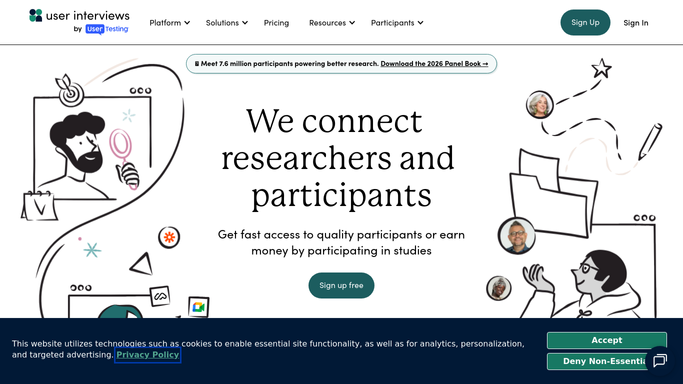
WebRun opens User Interviews to read completed sessions and incentives. - Open User Interviews and find sessions newly marked complete
- Capture the participant, study, and agreed incentive amount for each
- Confirm the session was attended and not already paid before queueing anything
Done when Each completed, unpaid session has its participant and incentive captured.
-
2
Slack - queue the payout for approval
slack.com How to Automate Slack

WebRun opens Slack to queue the payout for approval. - Post a queued payout to the research channel with the participant, study, and amount
- Group the day's payouts so a researcher can review them together
- Leave each payout for a human to approve and release in User Interviews. Never trigger a payment automatically
Done when Every completed session has a payout queued in Slack for human approval.
How is each run configured?
Secure by default
Connect once, stays signed in
WebRun signs in once and keeps each session in a persistent environment, so every run picks up right where it left off.
Every action is checked against this policy before it runs.
Questions, answered
Will it pay participants without my approval?
No. WebRun never moves money. It only queues each payout in Slack with the amount and participant, and a researcher approves and releases it in User Interviews.
How does it avoid paying someone twice?
It checks that the session is attended and not already marked paid in User Interviews before queueing, so a completed payout is never queued a second time.
What details does the payout queue show?
It shows the participant, study, session date, and the agreed incentive amount, so you can confirm each payout at a glance before releasing it.
Related templates
Put this on autopilot.
Turn it on in minutes - or have our team set it up for you.