Route every damage claim to the right person instantly
When a damage claim is logged in Supermove, WebRun reads the claim details, categorizes it by damage type and estimated value, logs it to a Google Sheet for tracking, and routes a full briefing to the right handler in Slack so the claim is owned within minutes.
- No credit card
- Under $0.01 per run
- Cancel anytime
How do I automatically route moving damage claims to the right person when they come in?
WebRun picks up new damage claims from Supermove within minutes, categorizes each by damage type and estimated value, logs a row to your claims Google Sheet, and routes a detailed Slack notification to the correct handler. All customer communication stays with your team. No message is sent to the customer by this workflow.
- Every new damage claim is routed to the right handler within minutes of submission
- All claims are logged in a central Google Sheet for tracking and reporting
- High-value and third-party claims are escalated to the correct channel automatically
Built for moving company operations managers · claims handlers · moving compliance teams
What does WebRun do on every run?
The exact actions WebRun takes, in order - in plain language, so you can adjust anything.
-
WebRun signs in and gets to work
Opens
app.supermove.comin a real browser with your saved login - no setup, no API keys. -
1
Supermove - read incoming damage claim details
supermove.com
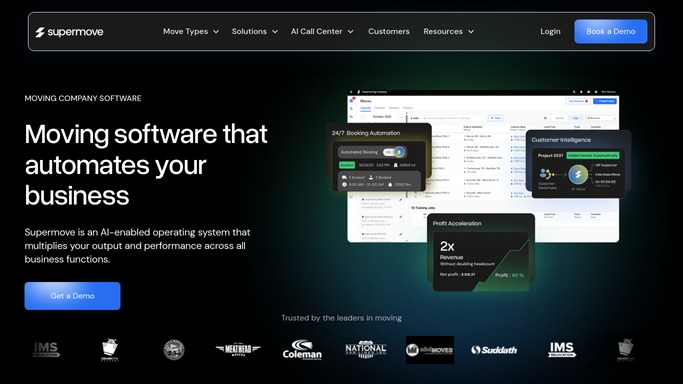
WebRun opens Supermove to read incoming damage claim details. - Open Supermove and identify newly submitted damage or loss claims
- Capture the customer name, job date, move route, item description, damage type, and estimated value
- Note the crew lead who handled the move and any existing job notes about the item
- Categorize the claim: minor cosmetic damage, major item damage, loss, or third-party property
Done when Every new claim is captured and categorized with its job and crew details.
-
2
Google Sheets - log claim to tracking sheet
google.com How to Automate Google Sheets

WebRun opens Google Sheets to log claim to tracking sheet. - Open the claims tracking Google Sheet
- Append a new row for each claim with date received, customer name, job number, damage category, estimated value, and assigned handler
- Mark the status as open so it appears on the active claims view
Done when Every new claim has a logged row in the tracking sheet with an open status.
-
3
Slack - route claim to correct handler
slack.com How to Automate Slack

WebRun opens Slack to route claim to correct handler. - Route minor cosmetic claims to the operations Slack channel for the crew lead to address
- Route major damage and loss claims to the claims manager Slack channel
- Route third-party property damage to the compliance channel
- Include claim category, estimated value, customer name, job number, and a link to the Google Sheet row in each Slack message
- Post automatically since this is an internal routing message with no customer data
Done when Every claim is routed to the correct Slack channel and a handler is notified.
How is each run configured?
Secure by default
Connect once, stays signed in
WebRun signs in once and keeps each session in a persistent environment, so every run picks up right where it left off.
Every action is checked against this policy before it runs.
Questions, answered
Does it contact the customer about their claim automatically?
No. This workflow is entirely internal. It routes the claim to your team and logs it for tracking. All customer communication is handled separately by the assigned handler.
How does it decide which handler or channel to route each claim to?
Routing is based on damage category and estimated value. Minor cosmetic claims go to the crew lead, major damage and loss go to the claims manager, and third-party property damage goes to compliance. You set the thresholds during setup.
Where are all the claims tracked over time?
Every claim is appended to a Google Sheet with its category, value, job details, and status, giving your team a single place to monitor open claims and see resolution history.
Related templates
Put this on autopilot.
Turn it on in minutes - or have our team set it up for you.