Give every crew lead a clear dispatch briefing before they leave
Each morning, WebRun opens Supermove, reads today's job schedule, pairs each job with its assigned truck and crew, compiles address details and special instructions, and posts a structured dispatch digest to your operations Slack channel.
- No credit card
- Under $0.01 per run
- Cancel anytime
How do I automatically send a daily dispatch briefing to my moving crews?
WebRun opens Supermove each morning at 6:30 AM, reads the full day's job schedule, and pairs each job with its crew, truck, addresses, arrival window, and special item notes. It then posts a structured dispatch digest to your operations Slack channel so every crew lead starts the day with a complete briefing.
- Every crew lead sees their full day's schedule in Slack before leaving the depot
- Last-minute job additions are highlighted so nothing is missed
- Dispatchers spend zero time compiling and distributing the morning briefing
Built for moving dispatchers · moving operations managers · crew leads
What does WebRun do on every run?
The exact actions WebRun takes, in order - in plain language, so you can adjust anything.
-
WebRun signs in and gets to work
Opens
app.supermove.comin a real browser with your saved login - no setup, no API keys. -
1
Supermove - read today's job schedule and crew assignments
supermove.com
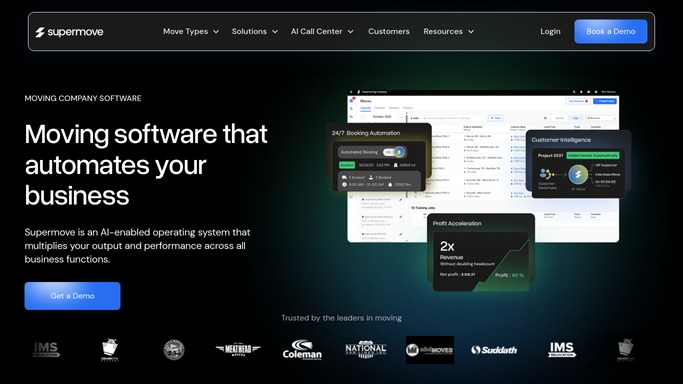
WebRun opens Supermove to read today's job schedule and crew assignments. - Open Supermove and filter today's dispatch board to all active jobs
- For each job, capture crew names, truck number, pickup address, delivery address, access codes, arrival window, and estimated job duration
- Note any special items flagged on the job such as pianos, artwork, or fragile antiques
- Identify any last-minute additions or reschedules since yesterday's digest
- Sort jobs by crew lead and then by start time
Done when Every active job today is captured with its crew, truck, addresses, and special notes.
-
2
Slack - post dispatch digest to operations channel
slack.com How to Automate Slack

WebRun opens Slack to post dispatch digest to operations channel. - Post a structured daily dispatch digest to the operations Slack channel
- Group entries by crew lead with each job listed below in start-time order
- Include truck number, pickup and delivery addresses, arrival window, and any special item flags
- Highlight any same-day additions or rescheduled jobs added since yesterday
- Post automatically since this is an internal operations digest with no customer data
Done when The full day's dispatch is posted in Slack and every crew lead can see their schedule.
How is each run configured?
Secure by default
Connect once, stays signed in
WebRun signs in once and keeps each session in a persistent environment, so every run picks up right where it left off.
Every action is checked against this policy before it runs.
Questions, answered
Does this send anything to customers or just the internal team?
This is a purely internal digest posted to your Slack operations channel. No customer-facing message is sent or drafted.
What if a job is added or rescheduled after the morning digest is sent?
WebRun highlights last-minute additions in the digest. You can also re-run the workflow manually at any time to get a refreshed view of the current schedule.
Can it post separate digests per crew lead rather than one combined digest?
Yes. Configure WebRun to post to individual Slack channels or DM each crew lead directly so everyone only sees their own schedule.
Related templates
Put this on autopilot.
Turn it on in minutes - or have our team set it up for you.