Audit accessorial charges on air cargo invoices every week
Every Monday, WebRun opens QuickBooks to read incoming carrier invoices, looks up the approved accessorial tariff for each charge type in Awery, compares the billed amount against the contracted rate, flags any overcharge above your set tolerance, and logs the full audit in Google Sheets for your finance team to review and dispute.
- No credit card
- Under $0.01 per run
- Cancel anytime
How do I automatically audit accessorial charges on air cargo carrier invoices?
WebRun reads incoming carrier invoices from QuickBooks every Monday, looks up each accessorial charge type against contracted tariffs in Awery, and logs the comparison in Google Sheets. Any billed amount exceeding the contracted rate by more than your set tolerance is flagged in red for your finance team to dispute.
- Accessorial overcharges are caught before invoices are paid, not discovered months later
- Google Sheets holds a complete weekly audit trail for every carrier invoice line item
- Finance team only reviews flagged exceptions rather than checking every invoice manually
Built for air cargo finance teams · airline cargo billing managers · freight forwarders · cargo audit and compliance teams
What does WebRun do on every run?
The exact actions WebRun takes, in order - in plain language, so you can adjust anything.
-
WebRun signs in and gets to work
Opens
quickbooks.intuit.comin a real browser with your saved login - no setup, no API keys. -
1
QuickBooks - read incoming carrier invoices
- Open QuickBooks and navigate to Bills received in the last 7 days
- Filter for carrier invoices containing accessorial line items (fuel surcharge, security fee, handling, storage)
- Capture invoice number, carrier, charge type, quantity, and billed amount for each line item
Done when All accessorial line items from this week's carrier invoices are captured with billed amounts.
-
2
Awery - look up approved accessorial tariffs
awery.aero How to Automate Awery
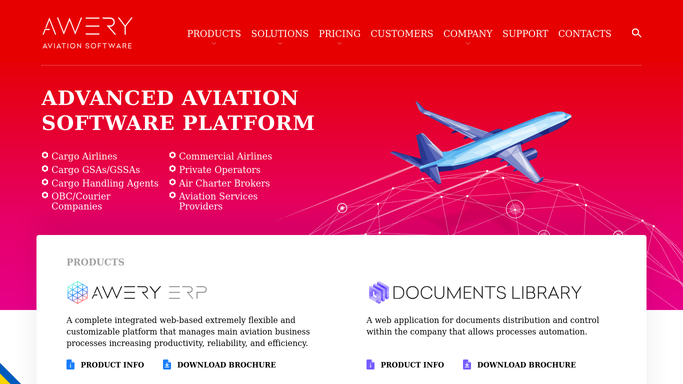
WebRun opens Awery to look up approved accessorial tariffs. - Open Awery and navigate to the tariff management module
- Look up the contracted rate for each charge type and carrier combination
- Note the approved rate per unit and any applicable caps or conditions
Done when Each billed charge type has a corresponding approved tariff rate from Awery.
-
3
Google Sheets - log audit results and flag discrepancies
google.com How to Automate Google Sheets

WebRun opens Google Sheets to log audit results and flag discrepancies. - Open the accessorial charge audit sheet and add this week's audit block
- For each line item, record billed amount, contracted rate, variance, and a pass or fail status
- Highlight rows where the billed amount exceeds the contracted rate by more than your tolerance in red
Done when Google Sheets contains a complete audit for this week's invoices with all overcharge flags highlighted.
How is each run configured?
Secure by default
Connect once, stays signed in
WebRun signs in once and keeps each session in a persistent environment, so every run picks up right where it left off.
Every action is checked against this policy before it runs.
Questions, answered
Will it automatically reject or dispute invoices with overcharges?
No. WebRun flags the discrepancies in Google Sheets for your finance team to review. All disputes are raised by your team through your normal vendor communication process.
What is the default tolerance for flagging an overcharge?
The default is any billed amount more than 5% above the contracted rate. You can set a different tolerance (fixed amount or percentage) in your WebRun settings.
What if the contracted tariff in Awery has not been updated yet?
Keep Awery tariff records current for accurate comparisons. If no tariff is found for a charge type, WebRun flags the line as needing manual review rather than skipping it.
Related templates
Put this on autopilot.
Turn it on in minutes - or have our team set it up for you.