Kick off onboarding for every new subscriber automatically
When a new subscription is activated in Chargebee, WebRun logs the customer and plan details in a Google Sheet, creates a kickoff event in Google Calendar for the onboarding team, and drafts a personalized welcome email in Gmail for review before it reaches the customer.
- No credit card
- Under $0.01 per run
- Cancel anytime
How do I automatically kick off onboarding for every new subscription?
When a new subscription activates in Chargebee, WebRun immediately logs the customer in a Google Sheet, creates an onboarding kickoff event in Google Calendar for the assigned account manager, and drafts a personalized welcome email in Gmail for review. Every step is documented and no email reaches the customer without team approval.
- Every new subscriber has a logged record, a kickoff event, and a welcome draft within minutes
- High-MRR new subscribers are flagged for priority onboarding attention
- No welcome email reaches a customer without team review and approval
Built for SaaS customer success teams · subscription businesses · account managers · revenue operations
What does WebRun do on every run?
The exact actions WebRun takes, in order - in plain language, so you can adjust anything.
-
WebRun signs in and gets to work
Opens
app.chargebee.com/loginin a real browser with your saved login - no setup, no API keys. -
1
Chargebee - detect new subscription activation
chargebee.com How to Automate Chargebee
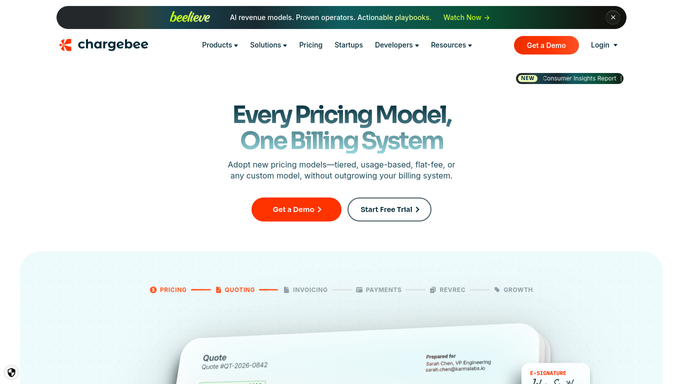
WebRun opens Chargebee to detect new subscription activation. - Open Chargebee and identify the newly activated subscription
- Capture customer name, email, plan name, MRR, billing cycle, and activation date
- Note any add-ons or custom terms on the subscription
Done when The new subscriber's details are captured from Chargebee.
-
2
Google Sheets - log new subscriber record
google.com How to Automate Google Sheets

WebRun opens Google Sheets to log new subscriber record. - Open the new subscriber tracker sheet and append a row for this customer
- Record customer name, email, plan, MRR, activation date, and onboarding status as Pending
- Mark any high-MRR subscriber for priority onboarding attention
Done when The new subscriber is logged in the tracker sheet with onboarding status set to Pending.
-
3
Google Calendar - create onboarding kickoff event
calendar.google.com How to Automate Google Calendar

WebRun opens Google Calendar to create onboarding kickoff event. - Open Google Calendar and create an onboarding kickoff event for 2 business days after activation
- Add the customer name, plan, and onboarding owner as event details
- Invite the account manager or customer success lead assigned to this plan tier
Done when An onboarding kickoff calendar event has been created for the new subscriber.
-
4
Gmail - draft welcome email for review
gmail.com How to Automate Gmail

WebRun opens Gmail to draft welcome email for review. - Open Gmail and create a welcome email draft addressed to the new subscriber
- Personalize the subject and body with their name, plan, and next steps for getting started
- Leave the draft unsent for team review and any final personalization before sending
Done when A personalized welcome email draft is ready in Gmail for team review.
How is each run configured?
Secure by default
Connect once, stays signed in
WebRun signs in once and keeps each session in a persistent environment, so every run picks up right where it left off.
Every action is checked against this policy before it runs.
Questions, answered
Will it send the welcome email to the new customer automatically?
No. The welcome email is saved as a Gmail draft for your team to review and personalize before sending. No email reaches the customer without approval.
Which team member does it invite to the kickoff calendar event?
It assigns the kickoff event to the account manager or customer success lead mapped to the customer's plan tier. You configure the mapping during setup.
What if a subscription is activated on a weekend?
The kickoff calendar event is scheduled for 2 business days after activation, so a Friday activation creates a Tuesday event and the team is notified on their next working day.
Related templates
Put this on autopilot.
Turn it on in minutes - or have our team set it up for you.