Get takedown day on the calendar before clients ask
Every morning, WebRun opens Tinsel CRM, finds installs entering their takedown window, drafts a client notice proposing a takedown date, books the crew slot on Google Calendar without double booking a route, and posts the day's takedown schedule to your crew's Slack channel.
- No credit card
- Under $0.01 per run
- Cancel anytime
How do I schedule and notify clients about holiday lighting takedown automatically?
WebRun checks Tinsel CRM every morning for installs entering their takedown window, drafts a client notice proposing a date, and books the crew slot on Google Calendar without double booking a route. It then posts the day's takedown schedule to your crew's Slack channel, so nothing slips past its window.
- No install overruns its contracted takedown window unnoticed
- Crews get a conflict free route every morning without manual scheduling
- Clients only hear a date once the office reviews and sends the notice
Built for holiday lighting installers · Christmas light removal crews · seasonal lighting business owners · exterior lighting operations managers
What does WebRun do on every run?
The exact actions WebRun takes, in order - in plain language, so you can adjust anything.
-
WebRun signs in and gets to work
Opens
app.tinselcrm.comin a real browser with your saved login - no setup, no API keys. -
1
Tinsel CRM - find installs entering takedown window
tinselcrm.com How to Automate Tinsel CRM
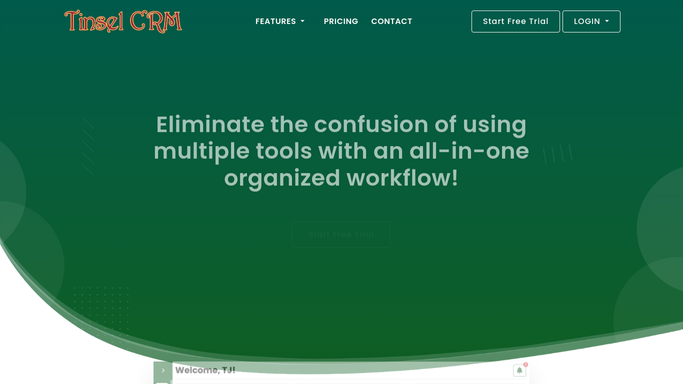
WebRun opens Tinsel CRM to find installs entering takedown window. - Open Tinsel CRM and filter installs whose takedown window has opened
- Draft a client notice proposing a takedown date and time window
- Leave the notice unsent. Do not message the client automatically
Done when Every install due for takedown has a proposed date and a drafted notice.
-
2
Google Calendar - book the crew slot
calendar.google.com How to Automate Google Calendar

WebRun opens Google Calendar to book the crew slot. - Check the crew calendar for that day's existing route
- Add the proposed takedown as a new event without overlapping another job
- Group nearby addresses onto the same crew's day where possible
Done when Every proposed takedown has a conflict free slot on the crew calendar.
-
3
Slack - post the takedown route
slack.com How to Automate Slack

WebRun opens Slack to post the takedown route. - Post the day's takedown route to the crew channel in visit order
- Flag any client notices still waiting for office approval to send
- Note any addresses grouped together for the same crew
Done when The crew has today's route and the office has the drafted notices to review.
How is each run configured?
Secure by default
Connect once, stays signed in
WebRun signs in once and keeps each session in a persistent environment, so every run picks up right where it left off.
Every action is checked against this policy before it runs.
Questions, answered
Will it tell clients their takedown date without approval?
No. WebRun only drafts the client notice inside Tinsel CRM. Your office reviews and sends it, so no client hears a date before a human confirms it.
How does it decide which crew gets which job?
It groups nearby addresses onto the same day and checks the existing Google Calendar route so no crew gets double booked.
What triggers a job to enter the takedown window?
Each install's contracted takedown period set in Tinsel CRM. Once that window opens, the job appears on the next run automatically.
Related templates
Put this on autopilot.
Turn it on in minutes - or have our team set it up for you.