Follow up on orders that skipped the minimum-age acknowledgement
Whenever a new FEARTICKET order arrives, WebRun checks whether the buyer confirmed the minimum-age policy at checkout, logs the answer to a Google Sheet, and for any order that skipped it, drafts a short acknowledgement-request email in Gmail that a staff member approves before it goes to the buyer.
- No credit card
- Under $0.01 per run
- Cancel anytime
How do I automatically collect a minimum-age acknowledgement from ticket buyers?
On each new FEARTICKET order, WebRun checks whether the buyer confirmed your minimum-age policy at checkout, logs the result to a Google Sheet, and for any order that skipped it, drafts a short confirmation-request email in Gmail. A staff member approves and sends those requests, so the age check is followed up without any message going out unreviewed.
- Every order's age acknowledgement is logged, not left to memory
- Buyers who skipped the check get a clear follow-up before the night
- No age-policy email goes to a buyer without staff approval
Built for haunted attraction owners · box office managers · event safety leads · Halloween event operators
What does WebRun do on every run?
The exact actions WebRun takes, in order - in plain language, so you can adjust anything.
-
WebRun signs in and gets to work
Opens
www.fearticket.comin a real browser with your saved login - no setup, no API keys. -
1
FEARTICKET - check the age acknowledgement on each order
fearticket.com How to Automate FEARTICKET
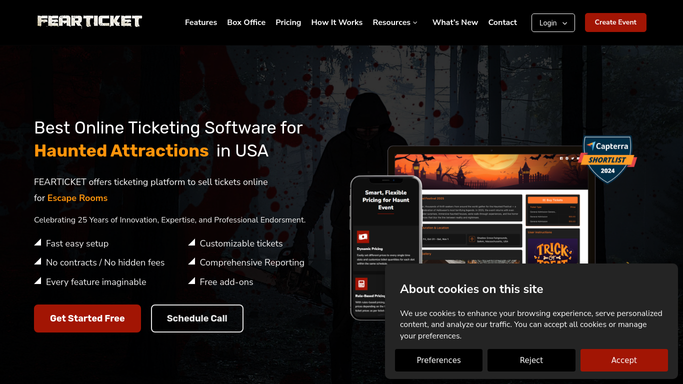
WebRun opens FEARTICKET to check the age acknowledgement on each order. - Open FEARTICKET and review new paid orders for tonight and upcoming nights
- For each order, read whether the buyer checked the minimum-age acknowledgement at checkout
- Capture the buyer name, email, ticket type, and party size for orders where it is missing or unclear
Done when Each new order is marked as age-confirmed or age-acknowledgement-missing.
-
2
Google Sheets - log who confirmed and who did not
google.com How to Automate Google Sheets

WebRun logs each order's age-acknowledgement status in Google Sheets. - Open the age-acknowledgement tracking sheet in Google Sheets
- Append a row for each order with the buyer, night, ticket type, and confirmed or missing status
- Keep a running tally of how many orders still need to acknowledge the age policy
Done when Every order's age-acknowledgement status is recorded in the sheet.
-
3
Gmail - draft the acknowledgement request
gmail.com How to Automate Gmail

WebRun drafts each age-acknowledgement request and leaves it unsent in Gmail. - For each order missing the acknowledgement, draft a short, polite email asking the buyer to confirm every guest meets the age policy
- State the minimum age clearly and note that ID may be checked at the door
- Save each message as a Gmail draft. Do not send any acknowledgement request to a buyer automatically
Done when A Gmail draft exists for every order missing the age acknowledgement, unsent for staff review.
How is each run configured?
Secure by default
Connect once, stays signed in
WebRun signs in once and keeps each session in a persistent environment, so every run picks up right where it left off.
Every action is checked against this policy before it runs.
Questions, answered
Will it email buyers about the age policy on its own?
No. WebRun only drafts the acknowledgement request and saves it in Gmail. A staff member reviews and sends it, so nothing reaches a buyer without approval. The internal Google Sheet log updates on its own since it stays inside your tools.
How does it know an order skipped the acknowledgement?
WebRun reads each FEARTICKET order for whether the buyer checked the minimum-age acknowledgement at checkout and marks any order where it is missing or unclear, so only those buyers get a follow-up draft.
Can I change the minimum age it references?
Yes. Tell WebRun your event's minimum age and any ID-at-the-door rule, and it writes that exact policy into both the tracking sheet notes and every drafted email.
Related templates
Put this on autopilot.
Turn it on in minutes - or have our team set it up for you.