Chase overdue supplier invoices so nothing slips past due
Every Monday, WebRun cross-references your GoTab purchasing records with QuickBooks to identify supplier invoices past their due date, then drafts a polite follow-up email to each vendor for your review before anything is sent.
- No credit card
- Under $0.01 per run
- Cancel anytime
How do I automatically chase overdue supplier invoices for my bar or brewery?
WebRun cross-references GoTab purchasing activity with QuickBooks every Monday, identifies supplier invoices past their due date, and drafts a polite follow-up email per vendor in Gmail for your review. No emails go out automatically. You approve each draft before it reaches your supplier.
- Overdue supplier invoices surface every Monday before they age further
- A polite follow-up draft is ready for each vendor with no writing required
- Nothing is sent to suppliers until you personally approve each email
Built for bar owners · brewery operators · food hall purchasing managers · hospitality finance teams
What does WebRun do on every run?
The exact actions WebRun takes, in order - in plain language, so you can adjust anything.
-
WebRun signs in and gets to work
Opens
gotab.comin a real browser with your saved login - no setup, no API keys. -
1
GoTab - pull outstanding purchase records
gotab.com How to Automate GoTab
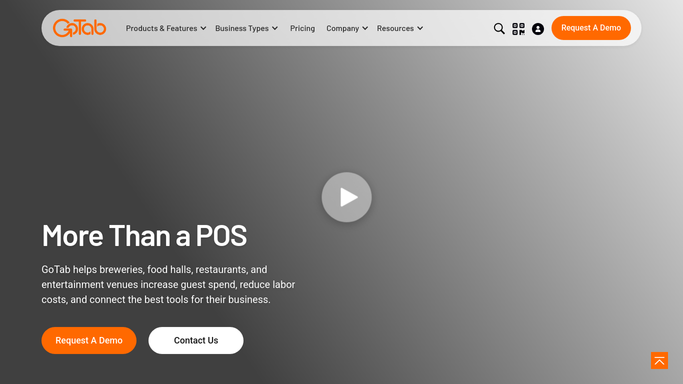
WebRun opens GoTab to pull outstanding purchase records. - Open GoTab and review recent beverage and supply purchasing activity
- Note suppliers with recent orders that should have corresponding invoices in the system
- Flag any suppliers with open or unrecorded deliveries
Done when Recent GoTab purchasing activity is noted for cross-reference.
-
2
QuickBooks - identify overdue supplier invoices
- Open QuickBooks and navigate to Accounts Payable
- Filter bills to overdue status and capture vendor name, invoice number, amount, and days past due
- Sort by days overdue with the oldest invoices first
Done when All overdue supplier invoices are listed with amounts and days past due.
-
3
Gmail - draft follow-up emails for review
gmail.com How to Automate Gmail

WebRun opens Gmail to draft follow-up emails for review. - Draft a polite follow-up email for each overdue invoice referencing the invoice number and amount
- Leave each draft in Gmail for your review before it is sent
- Do not send any email automatically
Done when A draft follow-up email is queued in Gmail for each overdue supplier invoice, ready for your review.
How is each run configured?
Secure by default
Connect once, stays signed in
WebRun signs in once and keeps each session in a persistent environment, so every run picks up right where it left off.
Every action is checked against this policy before it runs.
Questions, answered
Will it send the emails to suppliers without me?
No. Every follow-up email is saved as a Gmail draft for your review. Nothing is sent until you open each draft and click send yourself.
What if an invoice was already paid but not marked in QuickBooks?
WebRun only reads the live status in QuickBooks. Mark any paid invoice as settled there and it will be skipped on the next run.
Can it handle multiple suppliers and different payment terms?
Yes. It reads each bill's due date from QuickBooks regardless of net-30, net-60, or custom terms, so every supplier is handled correctly.
Related templates
Put this on autopilot.
Turn it on in minutes - or have our team set it up for you.