Request reviews from every happy event client
Every morning, WebRun opens Tripleseat to find events that completed in the last 48 hours, drafts a warm, personalized review request for each client referencing their specific event, and saves the emails in Gmail for review. A Slack note keeps your team in the loop.
- No credit card
- Under $0.01 per run
- Cancel anytime
How do I automatically request reviews from clients after their event?
WebRun checks Tripleseat every morning for events that concluded in the last 48 hours and drafts a warm, event-specific review request email for each client in Gmail. The coordinator reviews and sends each draft, so review requests go out consistently without relying on anyone to remember to follow up.
- Every completed event triggers a personalized review request draft within 48 hours
- Coordinators never have to remember to follow up after an event
- Review requests reference the client's specific event type for a personal touch
Built for venue coordinators · banquet hall managers · wedding venue owners · event space marketing teams
What does WebRun do on every run?
The exact actions WebRun takes, in order - in plain language, so you can adjust anything.
-
WebRun signs in and gets to work
Opens
app.tripleseat.comin a real browser with your saved login - no setup, no API keys. -
1
Tripleseat - find events completed in the last 48 hours
tripleseat.com
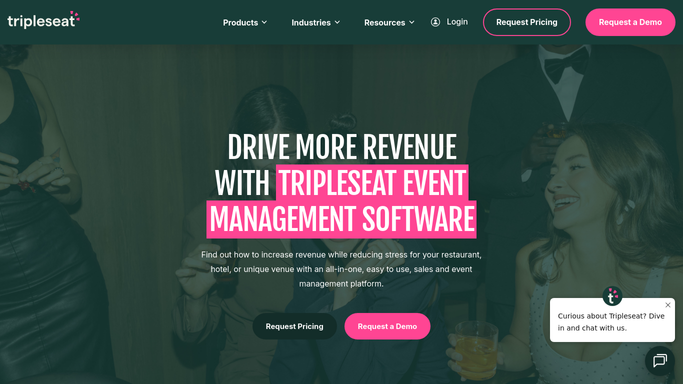
WebRun opens Tripleseat to find events completed in the last 48 hours. - Open Tripleseat and filter bookings to events with an end date in the last 48 hours
- Read the client name, event type, and any notes from the event coordinator
- Skip any booking marked as cancelled or no-show
Done when All events completed in the last 48 hours are listed with client and event details.
-
2
Gmail - draft personalized review request emails
gmail.com How to Automate Gmail

WebRun opens Gmail to draft personalized review request emails. - Draft a warm, personal review request email for each client
- Reference their specific event type and thank them for choosing the venue
- Include a direct link to your Google or preferred review platform
- Save each as a Gmail draft for review - do not send until approved
Done when A personalized review request draft is queued in Gmail for each completed event.
-
3
Slack - notify team of outgoing review requests
slack.com How to Automate Slack

WebRun opens Slack to notify team of outgoing review requests. - Post a brief note to the team channel listing the events for which review requests were drafted
- Include the event type and client name so the coordinator can add any personal touches before sending
Done when The team is aware of which review requests are queued for approval.
How is each run configured?
Secure by default
Connect once, stays signed in
WebRun signs in once and keeps each session in a persistent environment, so every run picks up right where it left off.
Every action is checked against this policy before it runs.
Questions, answered
Will it send the review request to the client automatically?
No. WebRun drafts the request and saves it in Gmail for your review. You read it, add any personal note, and send it yourself so only clients you want to ask actually receive the request.
Which review platforms does it link to?
You choose the platform when you set up the template: Google, WeddingWire, The Knot, Yelp, or any direct URL. WebRun inserts the correct link into every draft.
What if the event did not go well and I do not want to ask for a review?
Every draft waits for your approval. Simply delete the drafts for events where you prefer not to ask. You stay in full control of which clients receive a review request.
Related templates
Put this on autopilot.
Turn it on in minutes - or have our team set it up for you.