Reconcile LP capital call payments against your fund ledger
Every morning, WebRun opens QuickBooks and reads capital call payments received in the last 24 hours, then opens Juniper Square to compare those amounts against the expected payments for each LP. It flags any discrepancy, short payment, or missing entry, and posts a reconciliation digest to the fund accountant's Slack channel so they can resolve exceptions before the ledger closes.
- No credit card
- Under $0.01 per run
- Cancel anytime
How do I reconcile capital call payments between QuickBooks and Juniper Square automatically?
WebRun compares capital call payments received in QuickBooks against expected LP amounts in Juniper Square every morning. Matched payments, short pays, missing entries, and unattributed deposits are flagged in a daily Slack digest for the fund accountant to resolve before the ledger closes. No changes are made to either system automatically.
- Payment discrepancies caught the morning they occur, not at month-end
- Fund accountant starts each day with a matched vs. expected summary in Slack
- Unattributed deposits flagged immediately before they age on the bank statement
Built for fund accountants · private equity CFOs · real estate fund administrators · fund operations teams
What does WebRun do on every run?
The exact actions WebRun takes, in order - in plain language, so you can adjust anything.
-
WebRun signs in and gets to work
Opens
app.qbo.intuit.comin a real browser with your saved login - no setup, no API keys. -
1
QuickBooks - read capital call payments received in last 24 hours
- Open QuickBooks and filter the bank register or accounts receivable for capital call deposits received in the last 24 hours
- Capture the LP or entity name, payment amount, received date, and bank reference for each deposit
- Note any payments without a clear LP attribution
Done when All capital call deposits received in the last 24 hours are listed with LP name, amount, and reference.
-
2
Juniper Square - compare against expected LP payment amounts
junipersquare.com How to Automate Juniper Square
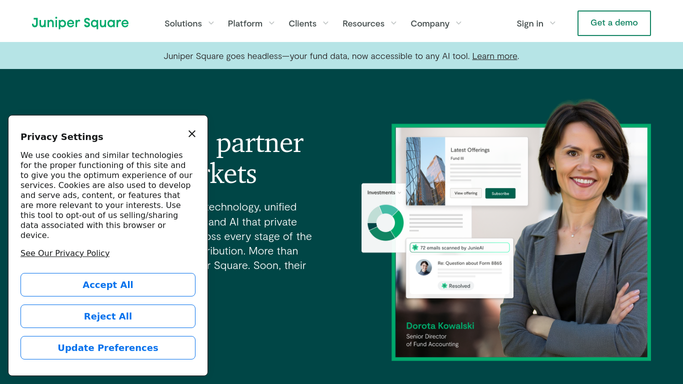
WebRun opens Juniper Square to compare against expected LP payment amounts. - Open Juniper Square and review the expected capital call payment schedule for each LP
- Match each QuickBooks payment to the corresponding Juniper Square LP and expected amount
- Flag any LP where the payment received differs from the expected amount, or where a payment is expected but not yet received
Done when Every QuickBooks payment is matched or flagged against the Juniper Square capital call schedule.
-
3
Slack - post reconciliation digest with discrepancies flagged
slack.com How to Automate Slack

WebRun opens Slack to post reconciliation digest with discrepancies flagged. - Post the daily reconciliation digest to the fund accounting Slack channel
- List matched payments, flagged discrepancies, and LPs whose payments are still outstanding
- Include the total matched amount versus total expected for the active capital call
Done when The fund accountant has today's reconciliation digest in Slack with discrepancies highlighted.
How is each run configured?
Secure by default
Connect once, stays signed in
WebRun signs in once and keeps each session in a persistent environment, so every run picks up right where it left off.
Every action is checked against this policy before it runs.
Questions, answered
Does it make any changes to QuickBooks or Juniper Square records?
No. WebRun is read-only across both systems. It reads payments and expected amounts, compares them, and reports. All corrections are made by the fund accountant after reviewing the digest.
What counts as a discrepancy?
Any QuickBooks deposit whose amount differs from the Juniper Square expected amount for that LP, any LP expected to pay who has no matching QuickBooks entry, and any payment with no identifiable LP attribution.
Can it handle payments that arrive over multiple days?
Yes. It checks the last 24 hours each morning, so payments that arrive on different days are picked up on the morning after they land in QuickBooks, and they are matched against the outstanding Juniper Square schedule.
Related templates
Put this on autopilot.
Turn it on in minutes - or have our team set it up for you.