Chase outstanding supplier invoices for your micro market operation
Every Monday, WebRun opens QuickBooks to find supplier invoices that are overdue or unmatched to a 365 Retail Markets purchase order, cross-references the ADM order history to confirm what was received, and posts a payables chase list to your finance team in Slack.
- No credit card
- Under $0.01 per run
- Cancel anytime
How do I automatically track overdue supplier invoices for my micro market business?
Every Monday, WebRun pulls purchase order history from 365 Retail Markets ADM and cross-references it against open bills in QuickBooks to find overdue or unmatched supplier invoices. It posts a prioritised payables chase list to Slack so the finance team can resolve exceptions before they delay restocking.
- Overdue supplier invoices are caught every Monday before they delay restocking
- Unmatched bills are flagged automatically so disputes are resolved early
- Finance teams start the week with a prioritised payables list, not a spreadsheet to build
Built for micro market operators · unattended retail finance teams · route operators with supplier accounts
What does WebRun do on every run?
The exact actions WebRun takes, in order - in plain language, so you can adjust anything.
-
WebRun signs in and gets to work
Opens
adm.365retailmarkets.comin a real browser with your saved login - no setup, no API keys. -
1
365 Retail Markets - pull purchase order and delivery history
365retailmarkets.com How to Automate 365 Retail Markets
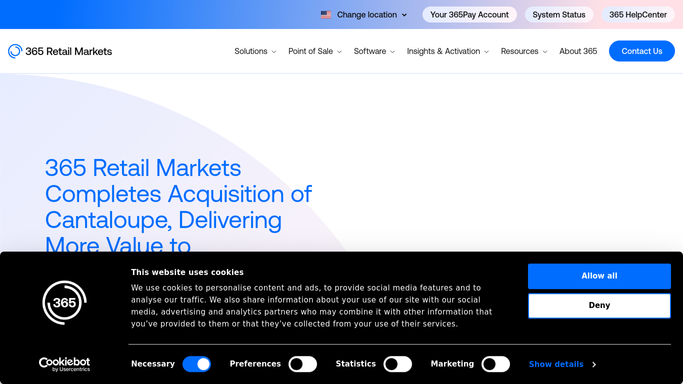
WebRun opens 365 Retail Markets to pull purchase order and delivery history. - Open ADM and navigate to Purchase Orders or the ordering history
- Pull all orders placed in the last 60 days with their expected delivery dates and supplier names
- Flag any order marked as delivered but not yet invoiced, or invoiced but not confirmed received
Done when All recent purchase orders are listed with their delivery and invoicing status.
-
2
QuickBooks - find overdue or unmatched supplier invoices
- Open QuickBooks and filter Bills to overdue or open status
- Match each bill to the corresponding 365 Retail Markets purchase order using supplier name and amount
- Flag bills with no matching PO or bills where the received quantity does not match the invoiced quantity
- Note the supplier, amount, due date, and days overdue for each exception
Done when Every overdue or unmatched supplier bill is captured with its details and mismatch reason.
-
3
Slack - post payables chase list to finance team
slack.com How to Automate Slack

WebRun opens Slack to post payables chase list to finance team. - Post a payables chase list to the finance channel listing overdue invoices from oldest to newest
- Include supplier name, invoice amount, due date, days overdue, and mismatch flag
- Keep the list internal. Do not contact suppliers directly
Done when The finance team's Slack has today's supplier invoice chase list ready to action.
How is each run configured?
Secure by default
Connect once, stays signed in
WebRun signs in once and keeps each session in a persistent environment, so every run picks up right where it left off.
Every action is checked against this policy before it runs.
Questions, answered
Will it pay any invoices or contact suppliers automatically?
No. WebRun only flags overdue and unmatched invoices and posts the list to Slack. All payment decisions and supplier contact stay with your finance team.
How does it match invoices to purchase orders?
It matches by supplier name and invoice amount against the purchase orders in 365 Retail Markets ADM. If there is no match or if amounts differ, the bill is flagged as an exception for manual review.
What if a supplier sends invoices by email rather than through ADM?
WebRun can read QuickBooks bills regardless of how they arrived. Bills entered manually in QuickBooks are included in the same check as electronically issued ones.
Related templates
Put this on autopilot.
Turn it on in minutes - or have our team set it up for you.