Start the day with your Workflowy priorities
Every morning, WebRun opens Workflowy, collects the items tagged for today plus anything past its date, drafts a polite Gmail nudge for the items that are waiting on someone else, and sends you a short WhatsApp brief of what to do first.
- No credit card
- Under $0.01 per run
- Cancel anytime
How do I get a daily to-do brief out of my Workflowy outline?
WebRun reads your Workflowy outline every morning, collecting items tagged for today, dated items that have slipped, and starred bullets. It drafts a Gmail check-in for anything waiting on someone else and sends you a short WhatsApp brief grouped by project, so you open the day already knowing what comes first.
- The day's priorities arrive before you open a laptop
- Overdue items surface with how many days they have slipped
- Blocked work gets a drafted nudge instead of sitting silent
Built for solo founders · consultants · project managers · outline power users
What does WebRun do on every run?
The exact actions WebRun takes, in order - in plain language, so you can adjust anything.
-
WebRun signs in and gets to work
Opens
workflowy.comin a real browser with your saved login - no setup, no API keys. -
1
Workflowy - collect today and overdue items
workflowy.com
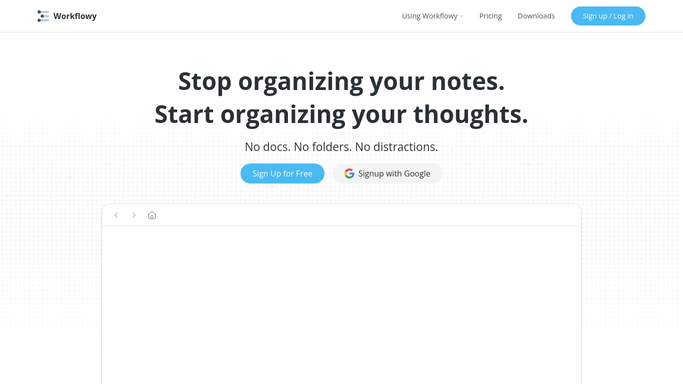
WebRun opens Workflowy to collect today and overdue items. - Open Workflowy and search the tags you use for today's work
- Add any dated item whose date has passed and is still unticked
- Pull in starred bullets so pinned priorities are never missed
- Note the parent bullet for each item so you know which project it belongs to
Done when Today's tagged, dated, and starred items are collected with their parent projects.
-
2
Gmail - draft nudges for blocked items
gmail.com How to Automate Gmail

WebRun opens Gmail to draft nudges for blocked items. - Pick out the overdue items that name someone else in the bullet
- Draft a short, friendly check-in email to each of those people
- Leave every message in Drafts for your review. WebRun never emails a colleague or client on its own
Done when Each blocked item has a ready-to-send check-in waiting in Drafts.
-
3
WhatsApp - send your morning brief
whatsapp.com How to Automate WhatsApp
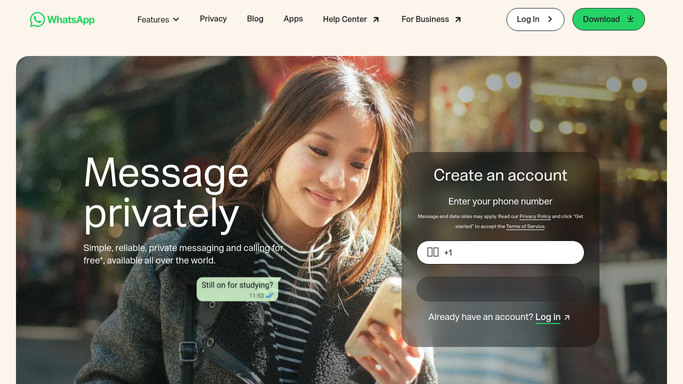
WebRun opens WhatsApp to send your morning brief. - Send yourself a short brief with the day's items grouped by project
- Put overdue items at the top with how many days late they are
- Note how many nudges are waiting in Drafts for approval
Done when Your day's list is on your phone before you open a laptop.
How is each run configured?
Secure by default
Connect once, stays signed in
WebRun signs in once and keeps each session in a persistent environment, so every run picks up right where it left off.
Every action is checked against this policy before it runs.
Questions, answered
Will it email people I have listed in my bullets?
Only after you approve. WebRun writes each check-in as a Gmail draft and leaves it there. Nothing reaches a colleague or client until you open the draft and press send.
Does it edit or tick off my Workflowy bullets?
No. WebRun reads your outline and never changes it. Tags, dates, notes, and completion state stay exactly as you left them, so your outline is never rearranged by the automation.
What if I use different tags for my daily list?
Tell WebRun which tags you use and it searches those instead. It works with whatever convention your outline already follows, including starred bullets and plain due dates written in a bullet.
Related templates
Put this on autopilot.
Turn it on in minutes - or have our team set it up for you.