Get alerted when your single enters the Shazam charts
Every morning, WebRun opens Shazam, checks your tracked single's position on the relevant charts, schedules a promo push on Google Calendar the day it first enters a chart, and posts a Microsoft Teams alert so the marketing team can act while it is trending.
- No credit card
- Under $0.01 per run
- Cancel anytime
How do I get alerted when my track enters the Shazam charts?
WebRun checks Shazam every morning for a tracked single's chart position, schedules a promo push on Google Calendar the day it first enters a chart, and posts a Microsoft Teams alert to the marketing team. It never runs a promotion itself, so a label acts on chart momentum the same day instead of finding out later.
- New chart entries are caught the same day they happen
- Promo pushes are scheduled automatically instead of after the fact
- The marketing team acts while a track is still trending
Built for Record labels · music marketing teams · artist managers · music PR agencies
What does WebRun do on every run?
The exact actions WebRun takes, in order - in plain language, so you can adjust anything.
-
WebRun signs in and gets to work
Opens
www.shazam.comin a real browser with your saved login - no setup, no API keys. -
1
Shazam - check chart position
shazam.com
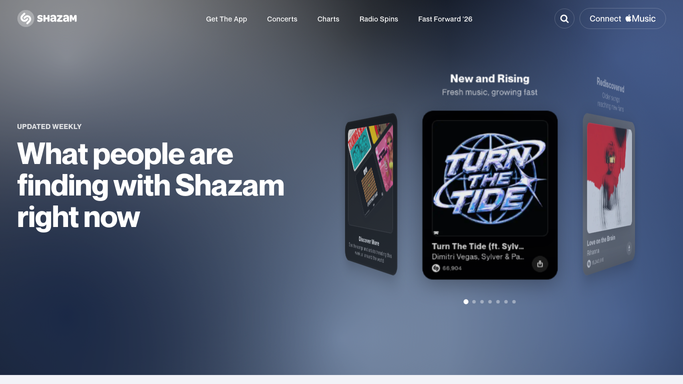
WebRun opens Shazam to check chart position. - Open Shazam and check the relevant charts for the tracked single
- Note today's chart position, if any
- Compare against yesterday's position to see if it is climbing
Done when Today's chart position for the tracked single has been checked.
-
2
Google Calendar - schedule the promo push
calendar.google.com How to Automate Google Calendar

WebRun opens Google Calendar to schedule the promo push. - Open the marketing calendar
- Add a promo push event the day the single first enters a chart
- Note the chart and position in the event details
Done when A promo push event is on the calendar if a new chart entry was found.
-
3
Microsoft Teams - alert the marketing team
microsoft.com How to Automate Microsoft Teams

WebRun opens Microsoft Teams to alert the marketing team. - Post an alert to the marketing channel naming the chart and position
- Note how the position has moved since yesterday
- Skip the post on a day with no change
Done when The marketing team has been alerted to today's chart movement.
How is each run configured?
Secure by default
Connect once, stays signed in
WebRun signs in once and keeps each session in a persistent environment, so every run picks up right where it left off.
Every action is checked against this policy before it runs.
Questions, answered
Does WebRun run the promotion itself?
No. It only schedules a calendar block and alerts the team. Writing and running the actual promotion is always done by your marketing team.
How is chart movement measured?
By comparing today's Shazam chart position for the tracked single against yesterday's, so a new entry or a climb is caught the same day it happens.
Can it track more than one single at a time?
Yes. Add every single you want tracked and each gets its own chart check and alert.
Related templates
Put this on autopilot.
Turn it on in minutes - or have our team set it up for you.