Get a daily digest of what changed on Nextcloud
Every morning, WebRun opens Nextcloud, checks the activity feed across shared folders for uploads, edits, and deletions from the day before, posts a daily summary to Slack grouped by folder and person, and alerts Telegram for any unusually large upload.
- No credit card
- Under $0.01 per run
- Cancel anytime
What does WebRun do on every run?
The exact actions WebRun takes, in order - in plain language, so you can adjust anything.
-
WebRun signs in and gets to work
Opens
nextcloud.comin a real browser with your saved login - no setup, no API keys. -
1
Nextcloud - check file activity feed
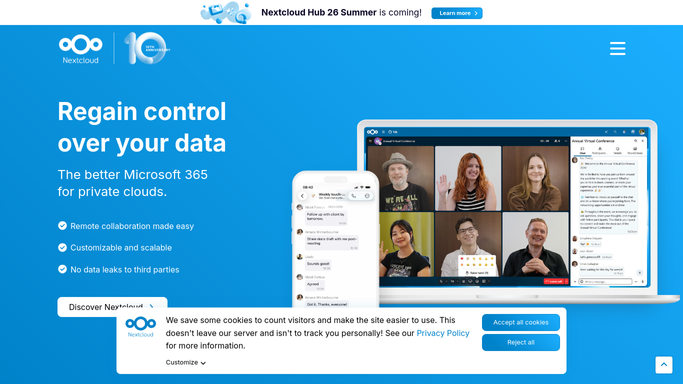
nextcloud.com How to Automate Nextcloud

WebRun opens Nextcloud to check the file activity feed. - Open Nextcloud and check the activity feed across shared folders
- Note new uploads, edits, and deletions since yesterday
- Flag any unusually large upload
Done when Yesterday's file activity is fully captured.
-
2
Slack - post daily digest
slack.com How to Automate Slack
WebRun opens Slack to post the daily digest. - Post a daily summary of uploads, edits, and deletions by folder
- Group activity by the person who made the change
- Keep the summary short: counts, not a line for every file
Done when The team channel has today's activity digest.
-
3
Telegram - alert on large uploads
telegram.org How to Automate Telegram
WebRun opens Telegram to alert on large uploads. - Send a direct alert for any unusually large upload
- Name the file, its size, and who uploaded it
- Skip this step on days with nothing unusually large
Done when Any oversized upload from yesterday has been flagged.


How do I keep track of daily file activity on Nextcloud?
WebRun checks Nextcloud's activity feed every morning for uploads, edits, and deletions from the day before, and posts a daily summary to Slack grouped by folder and person. Any unusually large upload gets a direct Telegram alert the same day, so the team has one clear picture of what changed without reading a raw activity log.
- The team sees a clear daily picture of file activity
- Unusually large uploads are flagged the same day
- Nobody has to read a raw activity log to know what changed
Built for Teams self-hosting Nextcloud · IT admins · small businesses tracking shared folders
How is each run configured?
Secure by default
Connect once, stays signed in
WebRun signs in once and keeps each session in a persistent environment, so every run picks up right where it left off.
Every action is checked against this policy before it runs.
Questions, answered
Does it flag deletions as something to undo?
No, it only reports that a deletion happened, as part of the daily count. It does not restore or reverse anything.
What counts as an unusually large upload?
Any file well above your typical upload size. It is called out directly in Telegram instead of waiting for the daily Slack digest.
Does it read the contents of files?
No. It only reads activity metadata: what changed, who changed it, and file size. It never opens or reads file contents.
Related templates
Put this on autopilot.
Turn it on in minutes - or have our team set it up for you.