Turn a new client into a ready Kantata project
When a new client card lands in the Trello intake list, WebRun reads the client's scope, budget, and contact, creates the matching project in Kantata with its team and onboarding checklist, and drafts a WhatsApp welcome message to the client's contact, ready for you to review and send.
- No credit card
- Under $0.01 per run
- Cancel anytime
What does WebRun do on every run?
The exact actions WebRun takes, in order - in plain language, so you can adjust anything.
-
WebRun signs in and gets to work
Opens
www.kantata.comin a real browser with your saved login - no setup, no API keys. -
1
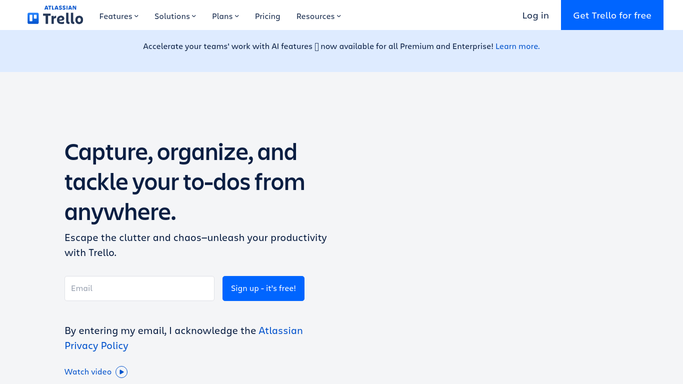
Trello - read the new client intake card
trello.com How to Automate Trello

WebRun opens Trello to read the new client intake card. - Open the intake board and find the new card in the New Clients list
- Capture the client name, scope, budget, and start date
- Note the primary contact for the welcome message
Done when The new client's details are captured from its Trello card.
-
2
Kantata - create the project and checklist
kantata.com
WebRun opens Kantata to create the project and checklist. - Create a new project using the captured client details
- Set the budget, start date, and assigned account team
- Work through the standard onboarding checklist: kickoff task, budget approval, resource assignment
Done when The Kantata project exists with its budget, team, and onboarding checklist started.
-
3
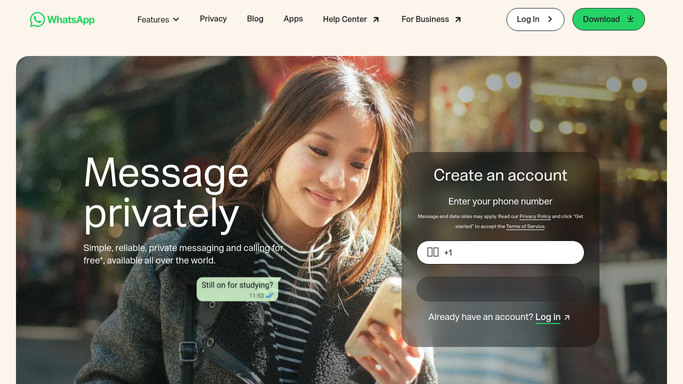
WhatsApp - draft a welcome message
whatsapp.com How to Automate WhatsApp
WebRun opens WhatsApp to draft a welcome message. - Draft a welcome message to the client's primary contact
- Confirm the project has kicked off and name their account lead
- Leave the message unsent. WebRun never messages a client on its own
Done when A ready-to-send WhatsApp welcome draft is waiting for review.

How do I automatically set up a new client project in Kantata?
When a new client card lands in your Trello intake list, WebRun reads the client's scope, budget, and contact, creates the matching project in Kantata with its team and onboarding checklist, and drafts a WhatsApp welcome message to the client's contact, leaving it unsent so you can review it before it goes out.
- A new client project is fully set up in Kantata within minutes of intake
- The onboarding checklist starts itself instead of waiting on a PM
- A welcome message is ready to send, never sent without review
Built for agencies · professional services firms · account managers · project managers
How is each run configured?
Secure by default
Connect once, stays signed in
WebRun signs in once and keeps each session in a persistent environment, so every run picks up right where it left off.
Every action is checked against this policy before it runs.
Questions, answered
Does it message the client without me?
No. It only drafts a WhatsApp welcome message and leaves it unsent. You review and send it yourself.
What does it set up inside Kantata?
It creates the project with the budget, start date, and assigned team from the intake card, then works through your standard onboarding checklist.
What if the intake card is missing details?
It fills in what the card provides and leaves any missing field for you to complete in Kantata rather than guessing.
Related templates
Put this on autopilot.
Turn it on in minutes - or have our team set it up for you.