Turn your CrazyGames stats into a weekly scorecard
Every Monday, WebRun opens CrazyGames, checks each published game's play count and rating for the prior week, logs the numbers to Airtable so the trend is visible over time, and updates a Notion dev log noting whether performance is climbing or slipping.
- No credit card
- Under $0.01 per run
- Cancel anytime
How do I track my CrazyGames performance week over week?
WebRun checks CrazyGames every Monday for each published game's plays and rating, logs the numbers to Airtable so the trend is visible over time, and updates a Notion dev log noting whether performance is climbing or slipping. It only reads dashboard data, so a developer gets a weekly scorecard without pulling stats by hand.
- Play count and rating trends are tracked without manual dashboard checks
- Rating drops are flagged the same week they happen
- A running performance history builds up automatically across your catalog
Built for Indie game developers · browser game studios · game publishers · HTML5 game teams
What does WebRun do on every run?
The exact actions WebRun takes, in order - in plain language, so you can adjust anything.
-
WebRun signs in and gets to work
Opens
www.crazygames.comin a real browser with your saved login - no setup, no API keys. -
1
CrazyGames - check plays and rating
crazygames.com

WebRun opens CrazyGames to check plays and rating. - Open the CrazyGames developer dashboard
- Note total plays and the average rating for each published game
- Compare against the numbers recorded the prior week
Done when Every published game's weekly plays and rating have been captured.
-
2
Airtable - log the weekly numbers
airtable.com How to Automate Airtable
WebRun opens Airtable to log the weekly numbers. - Open the game performance tracker base
- Add this week's plays and rating as a new row for each game
- Keep prior weeks so the trend builds up over time
Done when The tracker base has this week's row for every published game.
-
3
Notion - update the dev log
notion.so How to Automate Notion
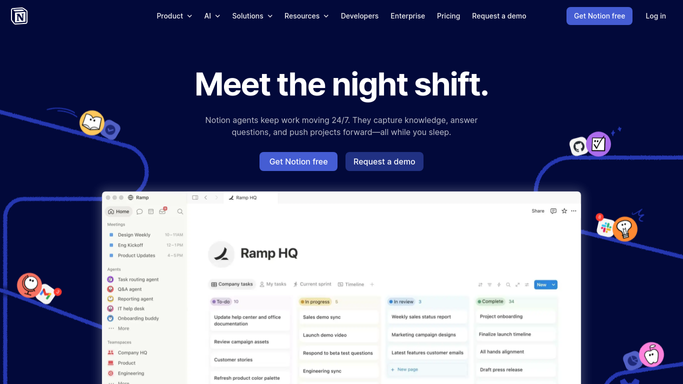
WebRun opens Notion to update the dev log. - Open the developer log page
- Note whether plays and rating climbed or slipped week over week
- Flag any game with a notable rating drop for review
Done when The Notion dev log reflects this week's performance trend.
How is each run configured?
Secure by default
Connect once, stays signed in
WebRun signs in once and keeps each session in a persistent environment, so every run picks up right where it left off.
Every action is checked against this policy before it runs.
Questions, answered
Does WebRun update the game's listing or respond to reviews?
No. It only reads plays and rating from the developer dashboard. Updating a listing or responding to feedback is always done by you.
How far back does the performance history go?
As far back as the tracker has been running. Every weekly check adds a new row to Airtable, so the trend builds up automatically.
Can it track more than one published game?
Yes. Every game on your developer dashboard gets its own row each week, so you can compare performance across your catalog.
Related templates
Put this on autopilot.
Turn it on in minutes - or have our team set it up for you.