See how each support agent did last week
Every Monday, WebRun opens Chatwoot, totals last week's conversations, first response times and satisfaction ratings for each agent, matches the numbers to that agent's one to one in Google Calendar, and posts the support lead a per agent scorecard in Teams with the low rated conversations linked.
- No credit card
- Under $0.01 per run
- Cancel anytime
How do I get a weekly performance scorecard for each support agent?
WebRun reads last week's Chatwoot reporting every Monday and builds a scorecard per agent: conversations handled, median first response time, and satisfaction ratings, with the low rated conversations linked. It notes the numbers on each agent's Google Calendar one to one and posts the scorecard to Microsoft Teams for the support lead.
- Every one to one starts with last week's real numbers
- Low rated conversations are linked, not just counted
- Response time drift shows up as a number before customers complain
Built for support leads · customer service managers · BPO teams · ecommerce support · SaaS support teams
What does WebRun do on every run?
The exact actions WebRun takes, in order - in plain language, so you can adjust anything.
-
WebRun signs in and gets to work
Opens
app.chatwoot.comin a real browser with your saved login - no setup, no API keys. -
1
Chatwoot - total last week's numbers per agent
chatwoot.com
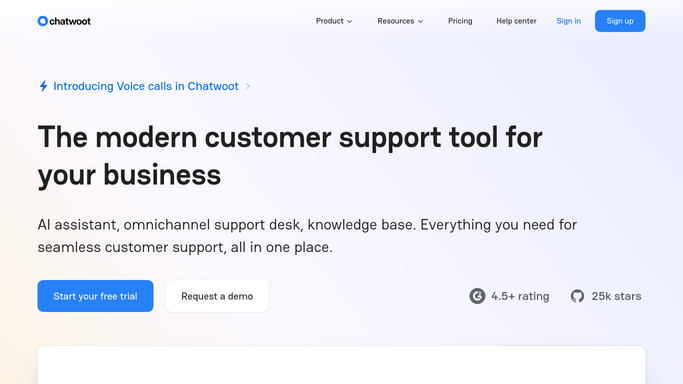
WebRun opens Chatwoot to total last week's numbers per agent. - Open Chatwoot and set the reporting range to the previous week
- Capture conversations handled and resolved per agent across every inbox
- Record median first response time and median resolution time for each agent
- Collect the satisfaction ratings received, and link every conversation rated poorly
- Note the labels that appear most often on the low rated conversations
Done when Every agent has last week's volume, response times, and satisfaction ratings recorded.
-
2
Google Calendar - attach the numbers to each one to one
calendar.google.com How to Automate Google Calendar

WebRun opens Google Calendar to attach the numbers to each one to one. - Find this week's existing one to one with each agent in Google Calendar
- Add that agent's numbers and linked conversations as a private note on the event
- Where an agent has no one to one booked, leave the invite as an unsent draft for the lead to send
- Never message an agent from the calendar. WebRun only prepares the entry
Done when Each booked one to one carries its agent's numbers, and any missing slot is drafted for approval.
-
3
Microsoft Teams - post the scorecard to the support lead
microsoft.com How to Automate Microsoft Teams

WebRun opens Microsoft Teams to post the scorecard to the support lead. - Post the per agent scorecard to your support leads channel
- Show volume, median first response time, and satisfaction rating side by side for each agent
- Link the low rated conversations under the agent they belong to
- Call out the biggest week on week move, up or down, so coaching starts in the right place
Done when The support lead has last week's per agent scorecard in Teams.
How is each run configured?
Secure by default
Connect once, stays signed in
WebRun signs in once and keeps each session in a persistent environment, so every run picks up right where it left off.
Every action is checked against this policy before it runs.
Questions, answered
Does it send anything to the agents themselves?
No. WebRun writes a private note on the lead's own calendar event and posts an internal Teams summary. Any missing one to one invite is left as an unsent draft for the lead to send.
Which numbers does the scorecard cover?
Conversations handled and resolved, median first response time, median resolution time, and the satisfaction ratings left that week, all taken straight from Chatwoot reporting for the previous week.
What about agents who worked part of the week?
Volume is shown alongside response time and rating, so a short week reads as fewer conversations rather than a worse agent. WebRun never turns the numbers into a ranking on its own.
Related templates
Put this on autopilot.
Turn it on in minutes - or have our team set it up for you.