Chase down Wrike tasks nobody's touched in weeks
Every Monday, WebRun opens Wrike, finds tasks with no status change or comment in the last 14 days across active folders, logs each one to an Airtable tracker with its owner and age, and posts the chase list to the team's Notion page so stale work gets a second look before it's forgotten entirely.
- No credit card
- Under $0.01 per run
- Cancel anytime
How do I find Wrike tasks that have gone stale?
WebRun checks Wrike every Monday for tasks with no status update or comment in 14 days, logs each one to an Airtable tracker with its owner and age, and posts the chase list to the team's Notion page, so work that's quietly stalled gets surfaced weekly instead of only showing up at a monthly review.
- Stalled tasks surface weekly instead of at a monthly review
- Every stale task has an owner and an age on record
- The chase list gives stakeholders visibility without a Wrike login
Built for Project managers · operations teams · marketing teams · agencies
What does WebRun do on every run?
The exact actions WebRun takes, in order - in plain language, so you can adjust anything.
-
WebRun signs in and gets to work
Opens
www.wrike.comin a real browser with your saved login - no setup, no API keys. -
1
Wrike - find tasks with no status update in 14 days
wrike.com
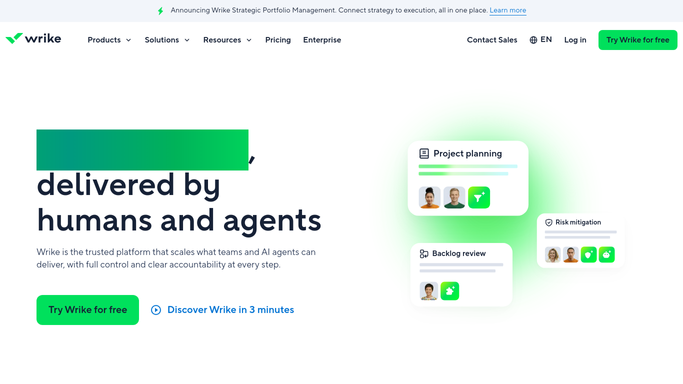
WebRun opens Wrike to find tasks with no status update in 14 days. - Open active folders and sort by last activity
- Collect tasks with no status change or comment in 14 days
- Note the owner and current status for each
Done when Every stale task is listed with its owner and last activity date.
-
2
Airtable - log them to the stale task tracker
airtable.com How to Automate Airtable
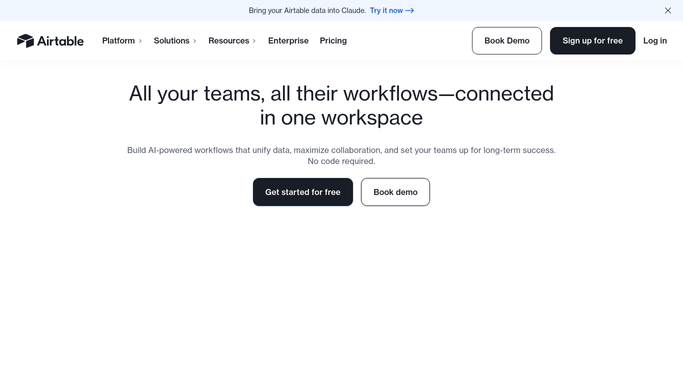
WebRun opens Airtable to log them to the stale task tracker. - Open the stale task tracker base
- Add a record for each stale task with its age
Done when The tracker reflects every currently stale task.
-
3
Notion - post the chase list to the team page
notion.so How to Automate Notion
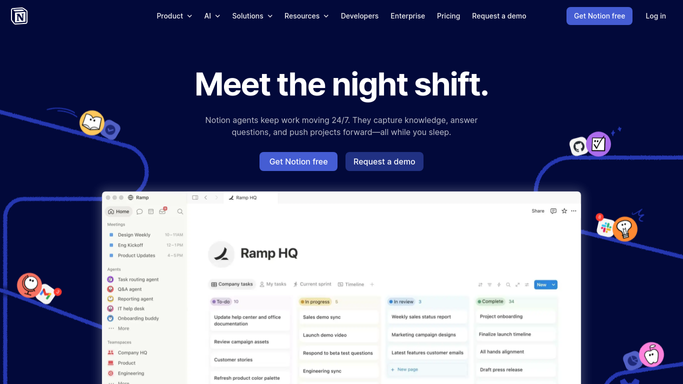
WebRun opens Notion to post the chase list to the team page. - Group stale tasks by owner
- Post the chase list to the team's shared page
Done when The team page has this week's chase list.
How is each run configured?
Secure by default
Connect once, stays signed in
WebRun signs in once and keeps each session in a persistent environment, so every run picks up right where it left off.
Every action is checked against this policy before it runs.
Questions, answered
Does WebRun update or close stale tasks itself?
No. It only reads how long a task has gone without activity. Updating, commenting, or closing a task is left entirely to the owner in Wrike.
How is stale defined?
Any task with no status change or comment in Wrike for 14 days. A single update resets the clock and drops it off the next chase list.
Is the chase list shared outside the team?
No. It only posts to your internal Notion page and Airtable base, never anywhere client-facing.
Related templates
Put this on autopilot.
Turn it on in minutes - or have our team set it up for you.