Webflow Automated Stale Lead Chase Lists
Every morning, WebRun opens Webflow, checks every form submission's timestamp and follow-up status, saves the stale lead list to Google Drive for a running record, and posts the same chase list to Slack with the oldest lead at the top.
How do I catch Webflow form leads that haven't been followed up on?
WebRun checks every Webflow form submission each morning, flagging any sitting more than 48 hours without a follow-up note. It saves the stale lead list to Google Drive for a running record and posts the same chase list to Slack with the oldest lead at the top, so a real prospect never goes quiet by accident.
- Stale leads get caught within 48 hours instead of going unnoticed
- The chase list always shows the oldest lead first
- A daily record of stale leads builds up in Drive automatically
Built for Web agencies · small business owners · marketing teams · sales teams using Webflow
What does WebRun do on every run?
The exact actions WebRun takes, in order - in plain language, so you can adjust anything.
-
WebRun signs in and gets to work
Opens
webflow.comin a real browser with your saved login - no setup, no API keys. -
1
Webflow - check form submissions
webflow.com
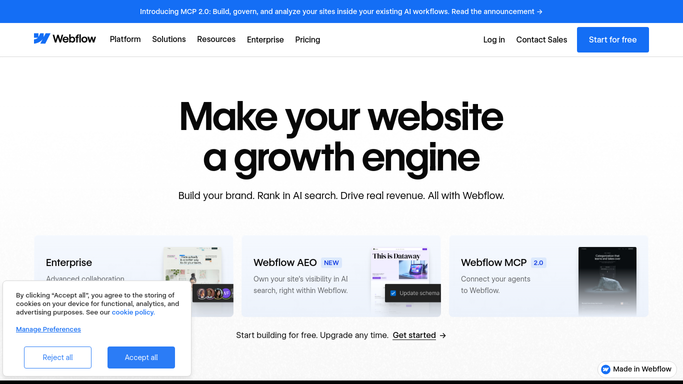
WebRun opens Webflow to check form submissions. - Open the site's form submissions in Webflow
- Check each one's timestamp and any follow-up note on record
- Flag submissions sitting more than 48 hours untouched
Done when Every form submission has a current age and follow-up status.
-
2
Google Drive - save the stale lead list
drive.google.com

WebRun opens Google Drive to save the stale lead list. - Save the stale lead list as a dated file in your shared Drive folder
- Keep prior days' lists for a running record
Done when Today's stale lead list is saved to Drive.
-
3
Slack - post the chase list
slack.com

WebRun opens Slack to post the chase list. - Post the chase list to your sales channel
- Show each lead's name, submission time, and how long it's been waiting
- Put the oldest at the top
Done when The team has today's chase list in Slack.
How is each run configured?
Secure by default
Connect once, stays signed in
WebRun signs in once and keeps each session in a persistent environment, so every run picks up right where it left off.
Every action is checked against this policy before it runs.
Questions, answered
Will it contact the lead directly?
No. WebRun only reads form submissions and posts an internal chase list. Reaching out to a lead always stays a step a person takes themselves.
How does it know a lead hasn't been followed up on?
It reads the timestamp on each submission and checks whether a follow-up note has been logged against it. No note after 48 hours means it lands on the chase list.
Does it cover every form on the site?
Yes. It checks every form submission across the site each morning, not just one form.
Related templates
Put this on autopilot.
Turn it on in minutes - or have our team set it up for you.