Digest finished Vervoe skills assessments daily
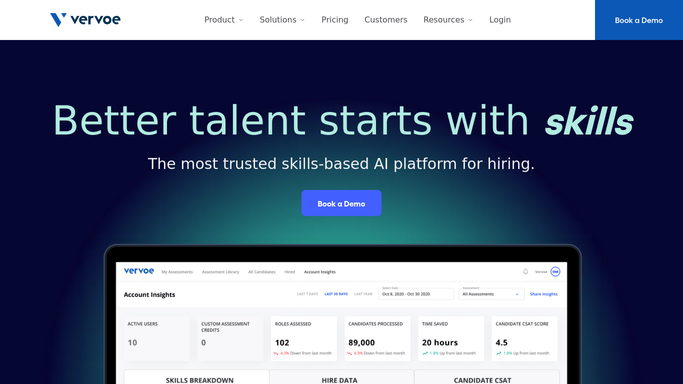
Every morning, WebRun opens Vervoe, checks which candidates completed their skills assessment since the last check, saves the results to Google Drive, and posts a digest to Slack so the hiring team knows who's ready for review.
- No credit card
- Under $0.01 per run
- Cancel anytime
What does WebRun do on every run?
The exact actions WebRun takes, in order - in plain language, so you can adjust anything.
-
WebRun signs in and gets to work
Opens
vervoe.comin a real browser with your saved login - no setup, no API keys. -
1
Vervoe - find completed assessments
vervoe.com

WebRun opens Vervoe to find completed assessments. - Open Vervoe and check assessments completed since yesterday
- Read the candidate, role, and score for each
- Note which results are ready for review
Done when Every assessment completed since the last run is captured.
-
2
Google Drive - save the results
drive.google.com How to Automate Google Drive
WebRun opens Google Drive to save the results. - Save a results file for each completed assessment
- Record the candidate, role, and score
- Keep the file in the shared hiring folder
Done when Every completed assessment has a results file in Drive.
-
3
Slack - post the hiring digest
slack.com How to Automate Slack
WebRun opens Slack to post the hiring digest. - Post a digest of today's completed assessments to the hiring channel
- Group by role and note the score range
- Leave the hiring decision to the team
Done when The hiring team has today's assessment digest in Slack.


How do I get notified when candidates finish their Vervoe skills assessment?
WebRun checks Vervoe every morning for candidates who completed their skills assessment since the last check. It saves the results to Google Drive and posts a digest to Slack grouped by role with the score range, so your hiring team reviews finished assessments the same day instead of checking Vervoe manually.
- Hiring teams review results the same day they finish
- Every assessment result is archived automatically
- Busy days are grouped by role instead of one alert per candidate
Built for Talent acquisition teams · hiring managers · high-volume hiring · skills-based hiring teams
How is each run configured?
Secure by default
Connect once, stays signed in
WebRun signs in once and keeps each session in a persistent environment, so every run picks up right where it left off.
Every action is checked against this policy before it runs.
Questions, answered
Does it score or rank the candidates?
No. WebRun only reports the score Vervoe already generated and that a result is ready. Deciding who moves forward stays with your hiring team.
Does it contact the candidate about their result?
No, the digest goes to your internal hiring team in Slack. WebRun never messages the candidate directly.
What if a role has many completed assessments in one day?
The digest groups them by role with the score range, so the team can scan a busy day at a glance instead of opening each one.
Related templates
Put this on autopilot.
Turn it on in minutes - or have our team set it up for you.