Get a daily digest of your Trovo stream highlights
Every morning, WebRun opens Trovo, checks yesterday's stream for new followers, peak viewers, and the top clips created during the broadcast, saves the clip links to a Google Drive folder, and posts a highlights digest to Slack.
- No credit card
- Under $0.01 per run
- Cancel anytime
What does WebRun do on every run?
The exact actions WebRun takes, in order - in plain language, so you can adjust anything.
-
WebRun signs in and gets to work
Opens
trovo.livein a real browser with your saved login - no setup, no API keys. -
1
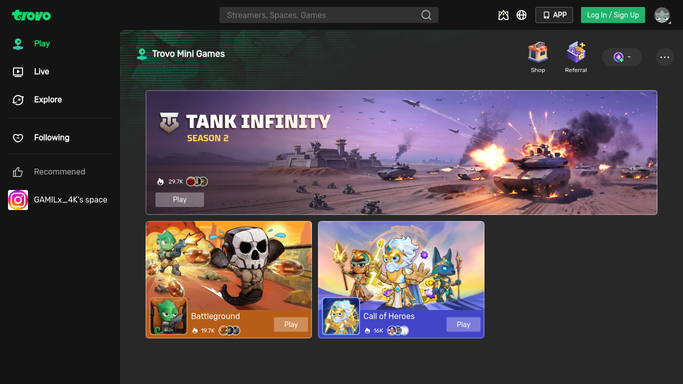
Trovo - check yesterday's stream stats and clips
trovo.live

WebRun opens Trovo to check yesterday's stream stats and clips. - Open the Trovo channel dashboard
- Read yesterday's new followers, peak viewers, and stream duration
- List the top clips created during the stream by view count
Done when Yesterday's stream stats and top clips are captured.
-
2
Google Drive - save the clip links
drive.google.com How to Automate Google Drive
WebRun opens Google Drive to save the clip links. - Save the links to the top clips in a dated Drive folder
- Note each clip's view count next to its link
- Keep the folder organized by stream date
Done when Yesterday's top clip links are saved to Google Drive.
-
3
Slack - post the highlights digest
slack.com How to Automate Slack
WebRun opens Slack to post the highlights digest. - Post yesterday's follower count, peak viewers, and top clips to Slack
- Link straight to the Drive folder for the full clip list
- Post it once a day, after the stream has ended
Done when The team has yesterday's Trovo highlights digest in Slack.


How do I get a daily summary of my Trovo stream's performance and highlights?
WebRun checks Trovo every morning for yesterday's stream, reading new followers, peak viewers, and the top clips by view count. It saves the clip links to a dated Google Drive folder and posts a highlights digest to Slack, so a channel's daily performance and best moments are never buried in Trovo's own dashboard.
- Yesterday's best clips are saved and findable within minutes
- Follower and viewer trends are visible every morning without checking Trovo
- The team starts the day with one highlights digest instead of scrolling the dashboard
Built for Trovo streamers · gaming content creators · streaming teams · esports organizations
How is each run configured?
Secure by default
Connect once, stays signed in
WebRun signs in once and keeps each session in a persistent environment, so every run picks up right where it left off.
Every action is checked against this policy before it runs.
Questions, answered
Does it post the clips anywhere publicly?
No. WebRun only saves clip links to a private Google Drive folder and posts the digest to your internal Slack. It never reposts or shares clips publicly.
How are top clips picked?
By view count on the clips Trovo's own viewers created during the stream, read straight from the channel's clip stats.
What if I didn't stream yesterday?
The digest simply reports no stream for that day instead of showing stale numbers from an earlier broadcast.
Related templates
Put this on autopilot.
Turn it on in minutes - or have our team set it up for you.