Keep an eye on comments landing on class projects
Every hour, WebRun signs into Scratch on your teacher account, reads new comments on the class studio and on student projects, logs each one to Google Sheets with the project and the commenter, puts anything unkind or off topic at the top for you to handle, and holds a short review slot in Google Calendar.
- No credit card
- Under $0.01 per run
- Cancel anytime
How do I keep track of comments on my students' Scratch projects?
WebRun watches the comments on your Scratch class work every hour. It reads new comments on the class studio and student projects, logs each with the project and commenter to Google Sheets, puts unkind or off topic ones first, and holds a Google Calendar slot to review them.
- An unkind comment is seen within the hour, not next week
- Every comment on class work is logged in one place
- Moderation stays a teacher decision, never automatic
Built for teachers · coding club leaders · STEM educators · school IT coordinators
What does WebRun do on every run?
The exact actions WebRun takes, in order - in plain language, so you can adjust anything.
-
WebRun signs in and gets to work
Opens
scratch.mit.eduin a real browser with your saved login - no setup, no API keys. -
1
Scratch - read new comments on class work
scratch.mit.edu
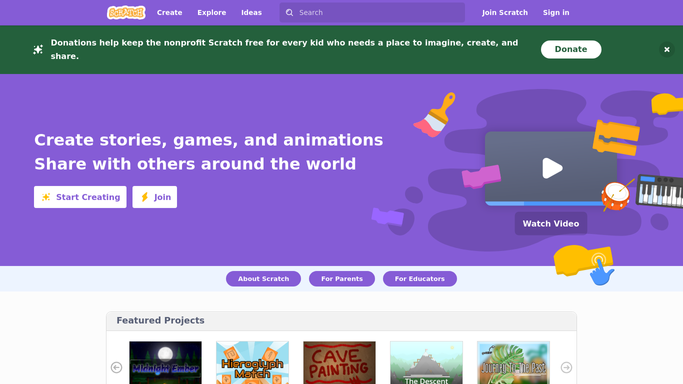
WebRun opens Scratch to read new comments on class work. - Sign into Scratch on the teacher account and open the class studio
- Read comments added since the last run on the studio and on student projects
- Capture the project, the commenter and the comment text for each
- Mark comments that look unkind, off topic, or that ask a student for personal details
- Do not reply, delete or report a comment. Every moderation action stays with the teacher
Done when New comments in the last hour are collected with the concerning ones marked.
-
2
Google Sheets - log them with the concerning ones first
google.com How to Automate Google Sheets

WebRun opens Google Sheets to log them with the concerning ones first. - Open the class comment log in Google Sheets
- Add one row per new comment with the time, project, commenter and text
- Put the flagged comments at the top of today's tab
- Keep a running count per project so a project attracting a lot of attention is obvious
- Skip comments already logged on an earlier run
Done when Every new comment is logged with the flagged ones first.
-
3
Google Calendar - hold a review slot
calendar.google.com How to Automate Google Calendar

WebRun opens Google Calendar to hold a review slot. - Open Google Calendar and find a short gap in the teaching day
- Hold a review slot when flagged comments are waiting
- Name the projects involved in the event so the review is quick
- Skip the slot entirely on hours with nothing flagged
Done when Time is held to review anything flagged today.
How is each run configured?
Secure by default
Connect once, stays signed in
WebRun signs in once and keeps each session in a persistent environment, so every run picks up right where it left off.
Every action is checked against this policy before it runs.
Questions, answered
Will it delete or reply to comments?
No. WebRun only reads and logs comments. Deleting, replying, or reporting is always done by the teacher on the Scratch account, so moderation decisions stay with a person.
Who can see the comment log?
Only the people you share the Google Sheet with. The log lives in your own Google account, is not posted anywhere public, and nothing is sent to students or their families.
How does it decide a comment is concerning?
It flags comments that read as unkind or off topic, and any that ask a student for personal details. Flags are a prompt for the teacher to look, not a judgement or an action.
Related templates
Put this on autopilot.
Turn it on in minutes - or have our team set it up for you.