Reconcile tracked time against invoiced hours in Scoro
Every Monday, WebRun opens Scoro, compares tracked time per project against hours already invoiced, logs any gap in Google Sheets alongside prior weeks, and emails the finance team a summary sorted by the largest gap.
- No credit card
- Under $0.01 per run
- Cancel anytime
What does WebRun do on every run?
The exact actions WebRun takes, in order - in plain language, so you can adjust anything.
-
WebRun signs in and gets to work
Opens
www.scoro.comin a real browser with your saved login - no setup, no API keys. -
1
Scoro - compare tracked time to invoiced hours
scoro.com

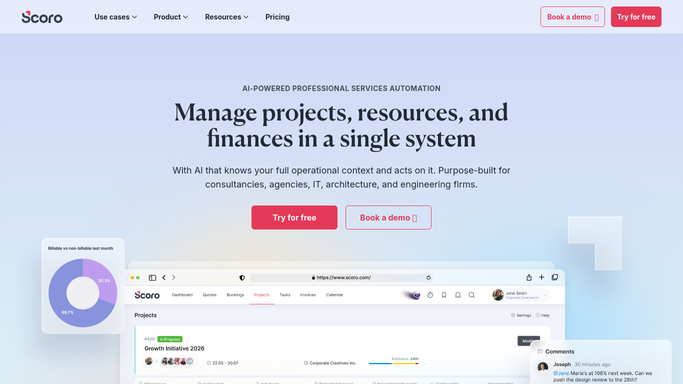
WebRun opens Scoro to compare tracked time to invoiced hours. - Open Scoro and compare tracked time per project against hours already invoiced
- Note any project where tracked time exceeds invoiced hours
- Flag the gap amount and the client
Done when Every project's tracked-versus-invoiced gap is captured.
-
2
Google Sheets - log every discrepancy
google.com How to Automate Google Sheets
WebRun opens Google Sheets to log every discrepancy. - Add a row per project with tracked hours, invoiced hours, and the gap
- Keep prior weeks' rows for a running record
- Highlight any gap over a set threshold
Done when This week's reconciliation is logged in Sheets.
-
3
Gmail - email the finance team
gmail.com How to Automate Gmail
WebRun opens Gmail to email the finance team. - Email the finance team the list of projects with an unbilled gap
- Sort by the largest gap first
- Link to the full Sheets log
Done when The finance team has this week's reconciliation summary by email.


How do I reconcile tracked time against invoiced hours in Scoro?
WebRun checks Scoro every Monday for projects where tracked time exceeds invoiced hours, logs each gap in Google Sheets alongside prior weeks, and emails the finance team a summary sorted by the largest gap. Unbilled work gets caught on a fixed schedule, instead of surfacing only when someone finally checks.
- Unbilled work gets caught on a fixed weekly schedule
- Every gap stays logged with a running history
- Finance reads only the projects that actually need attention
Built for finance teams · agency owners · professional services · operations managers
How is each run configured?
Secure by default
Connect once, stays signed in
WebRun signs in once and keeps each session in a persistent environment, so every run picks up right where it left off.
Every action is checked against this policy before it runs.
Questions, answered
Will it create or send an invoice?
No. WebRun only compares tracked time to what's already been invoiced. Creating or sending an invoice stays a manual step your finance team takes in Scoro.
What counts as a gap?
Any project where logged time exceeds what's been invoiced so far, which usually means billable work hasn't made it onto an invoice yet.
Does it check every client, or just flagged ones?
It checks every active project, but the email only lists the ones with a real gap, so finance isn't reading through fully reconciled projects.
Related templates
Put this on autopilot.
Turn it on in minutes - or have our team set it up for you.