Draft stem delivery notifications for clients
Every time a session is marked stems ready in Studio Hero, WebRun locates the finished files in Dropbox, confirms the share link works, and drafts a delivery email with the link and a short note on what's included, ready for your team to send.
- No credit card
- Under $0.01 per run
- Cancel anytime
What does WebRun do on every run?
The exact actions WebRun takes, in order - in plain language, so you can adjust anything.
-
WebRun signs in and gets to work
Opens
thestudiohero.comin a real browser with your saved login - no setup, no API keys. -
1
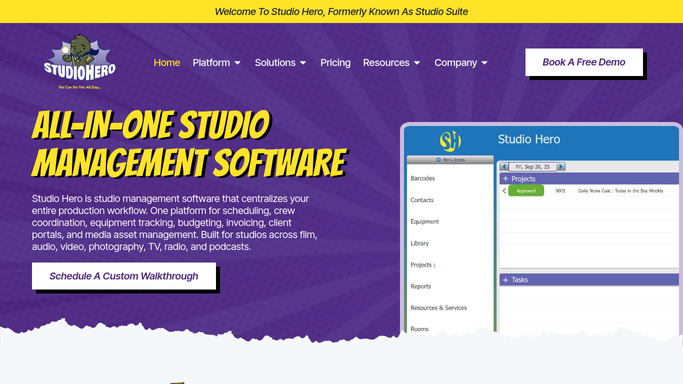
Studio Hero - find sessions marked stems ready
thestudiohero.com How to Automate Studio Hero

WebRun opens Studio Hero to find sessions marked stems ready. - Open Studio Hero and filter sessions to those marked stems ready
- Capture the client, project name, and engineer for each
- Skip sessions already notified in a previous run
Done when Every session with stems ready this run is captured with its details.
-
2
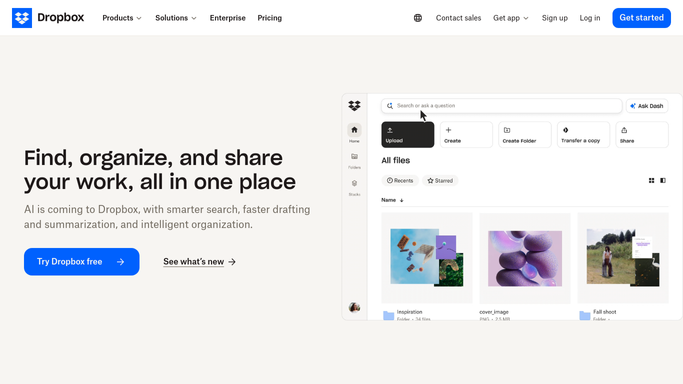
Dropbox - gather the finished stem files
dropbox.com How to Automate Dropbox
WebRun opens Dropbox to gather the finished stem files. - Locate the finished stem files for each session
- Confirm the folder or share link is set to viewable by the client
- Note the file count and total size for the email
Done when A working Dropbox link is ready for every session's stems.
-
3
Gmail - draft the delivery email
gmail.com How to Automate Gmail
WebRun opens Gmail to draft the delivery email. - Draft a delivery email with the Dropbox link and a short note on what's included
- Match the tone to your last few sent delivery emails
- Leave the email as a draft in Gmail. Do not send it
Done when A delivery draft is waiting in Gmail for every session with stems ready.

How do I notify clients when their stems are ready for download?
WebRun watches Studio Hero for sessions marked stems ready, gathers the finished files in Dropbox, and drafts a delivery email with the download link and a short note on what's included. The draft waits in Gmail for review, so every client hears their stems are ready quickly, without an unreviewed email reaching their inbox first.
- Clients hear their stems are ready within minutes of upload
- Delivery emails always include a working download link
- No finished session sits undelivered overnight
Built for recording studios · mixing engineers · mastering engineers · music producers
How is each run configured?
Secure by default
Connect once, stays signed in
WebRun signs in once and keeps each session in a persistent environment, so every run picks up right where it left off.
Every action is checked against this policy before it runs.
Questions, answered
Will clients get the stems without anyone checking first?
No. WebRun drafts the delivery email with the Dropbox link and leaves it unsent, so your team can confirm the files before the client is notified.
What if a session has stems ready but no working link yet?
WebRun still drafts the email with a placeholder note so your team knows to attach the link before sending, instead of silently skipping the session.
Does it work with folders as well as individual files?
Yes. It links to whatever the session's Dropbox folder or share link points to, so a full stems package or a handful of files both work.
Related templates
Put this on autopilot.
Turn it on in minutes - or have our team set it up for you.