Surface unservable cases before they become a client problem
Every morning, WebRun opens ServeManager, finds all active jobs with an unservable, non-est, or skip trace flag, groups them by urgency based on serve-by deadline and attempt count, logs the worklist to a Google Sheet, and posts a prioritized escalation summary to Slack so your team knows exactly which cases are blocked and what action is needed.
- No credit card
- Under $0.01 per run
- Cancel anytime
What does WebRun do on every run?
The exact actions WebRun takes, in order - in plain language, so you can adjust anything.
-
WebRun signs in and gets to work
Opens
www.servemanager.comin a real browser with your saved login - no setup, no API keys. -
1
ServeManager - find unservable and flagged jobs
servemanager.com How to Automate ServeManager

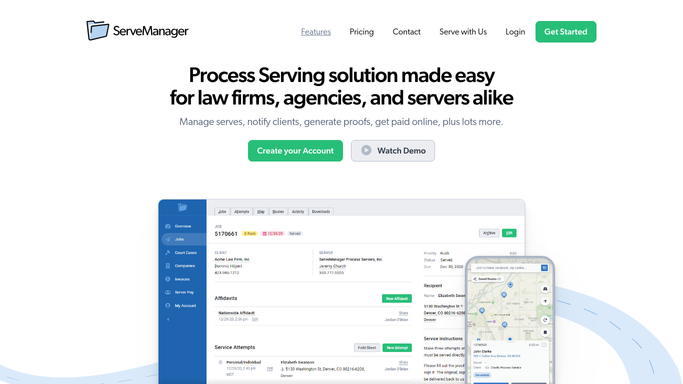
WebRun opens ServeManager to find unservable and flagged jobs. - Open ServeManager and filter jobs by status: Unservable, Non-Est, or tagged Skip Trace Needed
- For each job, read the job number, defendant name, client, attempt count, last attempt date, serve-by deadline, and any notes from the server
- Assign urgency: high if the serve-by deadline is within 7 days, medium if within 14 days, low otherwise
Done when All blocked jobs are listed with urgency tier, attempt count, and deadline detail.
-
2
Google Sheets - log escalation worklist
google.com How to Automate Google Sheets
WebRun opens Google Sheets to log escalation worklist. - Open the Escalation Worklist sheet
- Append a row for each blocked job with job number, defendant, client, status, attempt count, deadline, urgency, and today's date
- Update the status column for jobs previously flagged that have since been resolved
Done when The Escalation Worklist sheet reflects the current state of all blocked jobs.
-
3
Slack - post prioritized escalation summary
slack.com How to Automate Slack
WebRun opens Slack to post prioritized escalation summary. - Post a prioritized escalation summary to the ops channel, high urgency first
- For each job include: job number, defendant, client, status, attempt count, and days until deadline
- Add a total count: X high urgency, Y medium, Z low
Done when The ops channel has today's full escalation worklist sorted by urgency.


How do I track and prioritize unservable process serving cases?
WebRun opens ServeManager every morning, finds all jobs flagged as unservable, non-est, or needing a skip trace, and groups them by urgency based on how close the serve-by deadline is. It logs the full worklist to Google Sheets and posts a prioritized summary to Slack so your team resolves blocked cases before they become client escalations.
- Every unservable case is surfaced and prioritized every morning before clients notice
- High-urgency blocked cases appear at the top of the list automatically
- Resolved cases drop off the worklist the next day without manual maintenance
Built for process serving companies · legal support firms · process service managers · skip trace teams
How is each run configured?
Secure by default
Connect once, stays signed in
WebRun signs in once and keeps each session in a persistent environment, so every run picks up right where it left off.
Every action is checked against this policy before it runs.
Questions, answered
How does it decide which cases are high urgency?
High urgency means the serve-by deadline is within 7 days. Medium is within 14 days. Low is anything beyond that. The cutoffs are configurable in the run settings.
Will it notify clients about unservable cases automatically?
No. The escalation worklist is internal only. Client communication about blocked cases is handled by your team after reviewing the list.
What if a previously flagged job gets resolved?
WebRun reads live status from ServeManager each morning, so any job that has moved out of unservable status is automatically removed from the next day's worklist.
Related templates
Put this on autopilot.
Turn it on in minutes - or have our team set it up for you.