Route every new process serving job to the right server instantly
Every morning, WebRun opens ServeManager, finds new unassigned jobs, reads each job's county, address, and service type, matches it against your server availability list in Google Sheets, assigns the job to the best available server in ServeManager, and posts a routing summary to Slack so dispatch knows the day's queue is handled.
- No credit card
- Under $0.01 per run
- Cancel anytime
What does WebRun do on every run?
The exact actions WebRun takes, in order - in plain language, so you can adjust anything.
-
WebRun signs in and gets to work
Opens
www.servemanager.comin a real browser with your saved login - no setup, no API keys. -
1
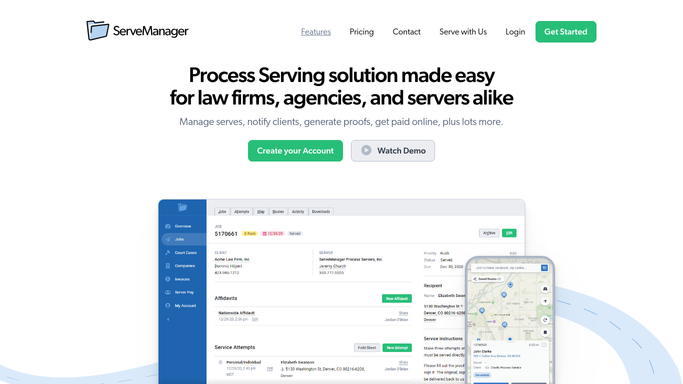
ServeManager - find new unassigned jobs
servemanager.com How to Automate ServeManager

WebRun opens ServeManager to find new unassigned jobs. - Open ServeManager and filter jobs to Unassigned status
- For each new job, read the service address, county, service type, and any rush flag
- Capture job number, client, and due date
Done when All unassigned jobs have their location and type details captured.
-
2
Google Sheets - match server availability
google.com How to Automate Google Sheets
WebRun opens Google Sheets to match server availability. - Open the Server Availability sheet
- Find servers active in the matching county or zip zone
- Check current workload column and filter out servers already at capacity
- Select the best available server for each job based on proximity and workload
Done when A server is matched to every unassigned job.
-
3
Slack - post routing summary
slack.com How to Automate Slack
WebRun opens Slack to post routing summary. - Post a routing summary to the dispatch channel: job number, defendant, county, assigned server, and due date
- Flag rush jobs at the top of the list
- Note any jobs that could not be auto-assigned due to no available server in the zone
Done when Dispatch has today's routing decisions in Slack and unassignable jobs are flagged for manual action.


How do I automatically route new process serving jobs to the right server?
WebRun opens ServeManager every morning, finds all new unassigned jobs, and matches each one to the best available server using your county availability list in Google Sheets. It then posts a routing summary to Slack listing every assignment and flagging any jobs that need manual dispatch, so your queue is handled before the workday begins.
- New jobs are matched to a server every morning without manual dispatch
- Rush jobs surface at the top of the routing summary automatically
- Unassignable jobs are flagged immediately so no case sits in limbo
Built for process serving companies · legal support dispatch teams · process service managers · multi-server firms
How is each run configured?
Secure by default
Connect once, stays signed in
WebRun signs in once and keeps each session in a persistent environment, so every run picks up right where it left off.
Every action is checked against this policy before it runs.
Questions, answered
What if no server is available in a job's zone?
WebRun flags the unassignable job in Slack for manual triage so your dispatch team can resolve it directly. No job is silently dropped.
How does it determine the best available server?
It matches the job's county or zip zone against your Server Availability sheet, then picks the active server with the lowest current workload. You control the availability data in the sheet.
Will it modify any job data in ServeManager?
WebRun reads job details from ServeManager and uses Sheets for matching. The routing summary goes to Slack for your dispatch team to act on. No job record is edited without human confirmation.
Related templates
Put this on autopilot.
Turn it on in minutes - or have our team set it up for you.