Turn OBS session logs into a weekly scorecard
Every Monday, WebRun reviews the OBS Studio session logs from the past week, captures dropped frames, bitrate, and duration for each one, logs them as rows in Google Sheets, and posts a weekly recap to Notion.
- No credit card
- Under $0.01 per run
- Cancel anytime
What does WebRun do on every run?
The exact actions WebRun takes, in order - in plain language, so you can adjust anything.
-
WebRun signs in and gets to work
Opens
obsproject.comin a real browser with your saved login - no setup, no API keys. -
1
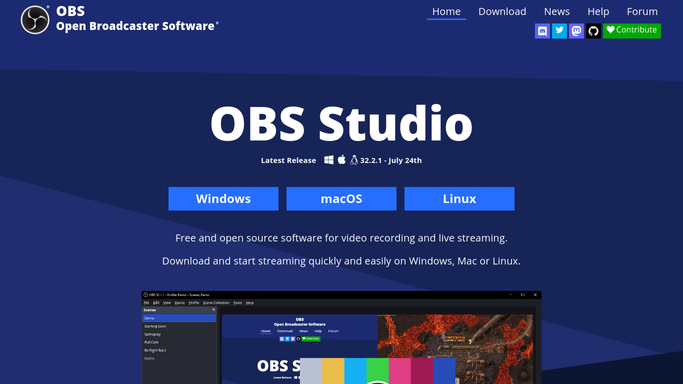
OBS Studio - review session logs
obsproject.com

WebRun opens OBS Studio to review session logs. - Open OBS Studio and review the stream and recording log for the week
- Capture dropped frames, average bitrate, and output file length for each session
- Flag any session with a crash or disconnect
Done when Every session this week has its health stats captured.
-
2
Google Sheets - log stream health metrics
google.com How to Automate Google Sheets
WebRun opens Google Sheets to log stream health metrics. - Log each session's date, duration, dropped-frame percentage, and bitrate as a new row
- Update the running weekly average
- Highlight any session over your dropped-frame threshold
Done when This week's sessions are logged with their health metrics.
-
3
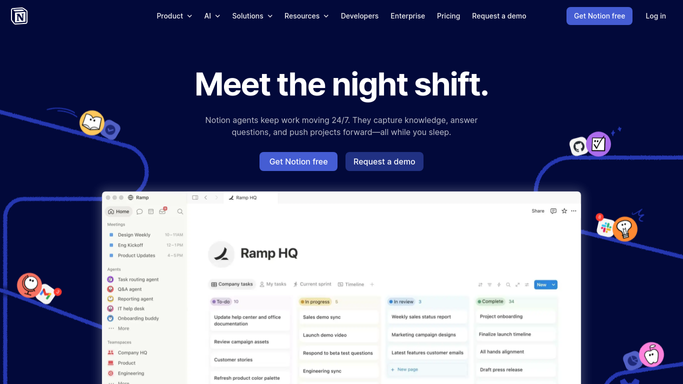
Notion - post the weekly recap
notion.so How to Automate Notion
WebRun opens Notion to post the weekly recap. - Post a weekly recap page summarizing session count, total hours, and average dropped frames
- Link back to the flagged sessions
- Leave it in your stream planning workspace for the team
Done when The weekly OBS scorecard is posted in Notion.

How do I track OBS Studio stream health over time?
WebRun reviews your OBS Studio stream and recording logs every Monday, pulling dropped-frame percentage, bitrate, and duration for each session that week. It logs every session as a row in Google Sheets and posts a weekly recap to Notion, so you can spot a flaky connection or a bad week of output without digging through log files yourself.
- Stream health is tracked automatically instead of scanning log files by hand
- A flaky session gets flagged the same week it happens
- The whole team sees a weekly recap in Notion
Built for streamers · content creators · gaming organizations · AV teams
How is each run configured?
Secure by default
Connect once, stays signed in
WebRun signs in once and keeps each session in a persistent environment, so every run picks up right where it left off.
Every action is checked against this policy before it runs.
Questions, answered
Does this need OBS Studio running the whole time?
No. WebRun reads the log files OBS Studio already writes after each session, so it works whether you streamed live or recorded locally.
What counts as a flagged session?
Any session where dropped frames or a disconnect crossed the threshold you set, so a real problem stands out from a normal broadcast.
Where do I see the trend over time?
Every session is logged as its own row in Google Sheets, so you can chart dropped frames and duration across weeks.
Related templates
Put this on autopilot.
Turn it on in minutes - or have our team set it up for you.