Automated Files.com Access Reviews
Every Monday, WebRun opens Files.com, reads the user list, group membership, folder permissions and every live share link, writes a dated access snapshot into Google Sheets, and posts to Telegram anything that looks off, such as a share link with no expiry or a user with unexpectedly broad folder access.
How do I review Files.com user access and share links each week?
WebRun runs your Files.com access review every Monday. It reads users, group membership, folder permissions and every live share link, writes a dated snapshot into Google Sheets with the week's changes marked, and posts the exceptions to Telegram, such as a share link with no expiry or unusually broad folder access.
- A dated access picture exists for every week, ready for an auditor
- Share links with no expiry are caught within seven days
- Permission changes are visible week over week without a manual export
Built for IT admins · compliance teams · security engineers · managed file transfer owners
What does WebRun do on every run?
The exact actions WebRun takes, in order - in plain language, so you can adjust anything.
-
WebRun signs in and gets to work
Opens
app.files.comin a real browser with your saved login - no setup, no API keys. -
1
Files.com - read users, groups and permissions
files.com
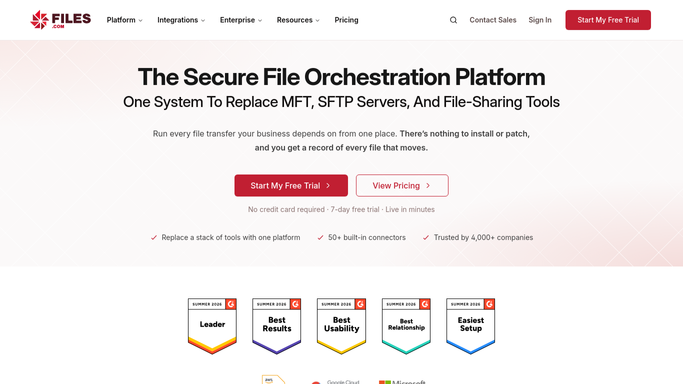
WebRun opens Files.com to read users, groups and permissions. - Open Files.com and list every user with their group memberships and last login
- Walk the folder tree and record which users and groups have access to each folder and at what permission level
- List every live share link with its folder, its expiry date and whether it is password protected
- Note users who are disabled but still hold permissions, and groups with no members
Done when Every user, group, folder permission and share link has been captured.
-
2
Google Sheets - write the dated access snapshot
google.com

WebRun opens Google Sheets to write the dated access snapshot. - Add a dated tab to your access review sheet
- Write one row per user with their groups, last login and the folders they can reach
- Write a second table of share links with folder, expiry and password status
- Compare against last week's tab and mark every permission or link that was added, changed or removed
Done when The sheet holds this week's access snapshot with the changes since last week marked.
-
3
Telegram - flag anything unusual
telegram.org

WebRun opens Telegram to flag anything unusual. - Post a short review summary to your admin channel
- Lead with the exceptions: share links with no expiry, links to folders holding sensitive material, and users whose folder access is broader than their group peers
- Add users who have not logged in for months but still hold access
- Link the sheet tab for the full detail
Done when The admin channel has this week's exceptions and a link to the full snapshot.
How is each run configured?
Secure by default
Connect once, stays signed in
WebRun signs in once and keeps each session in a persistent environment, so every run picks up right where it left off.
Every action is checked against this policy before it runs.
Questions, answered
Will it revoke access or delete share links?
No. WebRun only reads your Files.com users, groups, permissions and links. Revoking access, expiring a link or disabling a user stays a manual decision, so the review never changes who can reach what.
What counts as unusual enough to flag?
Share links with no expiry date or no password, users whose folder access is broader than others in the same group, disabled users who still hold permissions, and accounts with no login for months. You set the thresholds and the folders that count as sensitive.
Can I prove what access looked like on a given date?
Yes. Each run writes its own dated tab in the Google Sheet and marks what changed since the previous week, so you can show an auditor the exact permission and share link picture for any Monday you have been running it.
Related templates
Put this on autopilot.
Turn it on in minutes - or have our team set it up for you.