Prep new-hire access for every office the right way
When a new hire is added in Okta, WebRun reads their role, office, and start date, maps them to the standard Denticon permission template for that role, prepares the exact office and access set, and posts it to Slack for an administrator to approve before any permission is granted in Denticon.
- No credit card
- Under $0.01 per run
- Cancel anytime
What does WebRun do on every run?
The exact actions WebRun takes, in order - in plain language, so you can adjust anything.
-
WebRun signs in and gets to work
Opens
www.denticon.comin a real browser with your saved login - no setup, no API keys. -
1
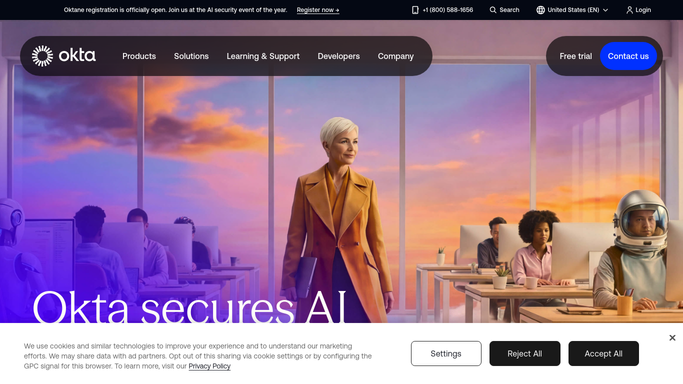
Okta - read the new hire and role
okta.com

WebRun opens Okta to read the new hire and role. - Open Okta and read new user records added since the last run
- Capture each new hire's job title, assigned office, department, and start date
- Skip contractors and records missing an office assignment, and note them for follow up
- Group new hires by role so the right permission template can be matched
Done when Every new hire is captured with a role, an office, and a start date.
-
2
Denticon - map the permission template
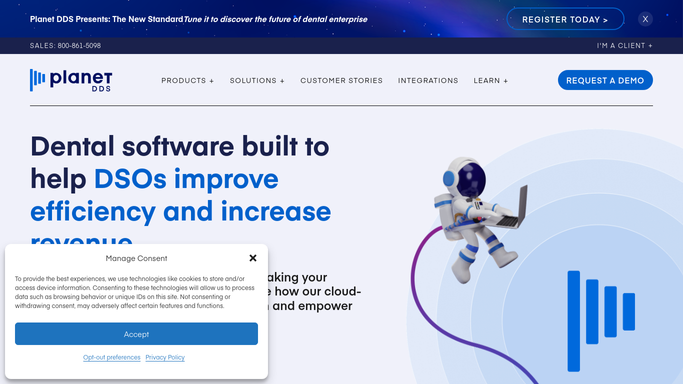
planetdds.com How to Automate Denticon
WebRun opens Denticon to map the permission template. - Open Denticon and identify the standard permission template that matches each hire's role, such as front desk, hygienist, or office manager
- Determine the exact office or offices the hire should be scoped to
- Assemble the proposed access set without applying it, noting any elevated permission that needs extra sign off
- Check whether a user record already exists to avoid a duplicate
Done when Each new hire has a proposed Denticon permission set and office scope prepared but not applied.
-
3
Slack - queue the access request for approval
slack.com How to Automate Slack
WebRun opens Slack to queue the access request for approval. - Post each proposed access request to the IT admin Slack channel
- Show the hire, role, office scope, the exact permission template, and any elevated access flagged for extra sign off
- Leave the request for an administrator to approve and apply in Denticon. Never grant or change permissions automatically
- Track which requests are still awaiting approval so none is forgotten before the start date
Done when Every new hire's proposed access sits in Slack awaiting an administrator's approval.

How do I prepare Denticon access for new hires across my dental group?
When a new hire lands in Okta, WebRun reads their role, office, and start date, then maps them to your standard Denticon permission template and office scope. It posts the proposed access set to Slack for an administrator to approve and apply, so the right access is ready by day one while no permission is ever granted automatically.
- New-hire access is mapped and ready to approve before the start date
- Every grant is applied by an admin, so no permission is set automatically
- Role based templates keep access consistent and least privilege across offices
Built for DSO IT teams · system administrators · HR operations · practice onboarding managers
How is each run configured?
Secure by default
Connect once, stays signed in
WebRun signs in once and keeps each session in a persistent environment, so every run picks up right where it left off.
Every action is checked against this policy before it runs.
Questions, answered
Will it grant access in Denticon on its own?
No. WebRun only prepares the proposed permission set and office scope and posts it to Slack. An administrator reviews and applies it in Denticon. No permission is ever granted or changed automatically.
How does it know which permissions a hire needs?
It matches the hire's role from Okta to your standard Denticon permission template for that role, such as front desk or hygienist, and scopes it to their assigned office, flagging any elevated access that needs extra sign off.
What about contractors or incomplete records?
It skips contractors and any record missing an office assignment, and lists them separately for a person to review, so an incomplete or non standard hire never gets an auto proposed access set.
Related templates
Put this on autopilot.
Turn it on in minutes - or have our team set it up for you.