Track last free days across all open containers and flag urgent ones
Every morning, WebRun opens PortPro, reads the last free day for every open import container, calculates urgency by days remaining, and logs a ranked watchlist to Google Sheets so your team has a single source of truth for free-time expiry across the whole fleet.
- No credit card
- Under $0.01 per run
- Cancel anytime
What does WebRun do on every run?
The exact actions WebRun takes, in order - in plain language, so you can adjust anything.
-
WebRun signs in and gets to work
Opens
app.portpro.ioin a real browser with your saved login - no setup, no API keys. -
1
PortPro - read last free day for all open containers
portpro.io How to Automate PortPro

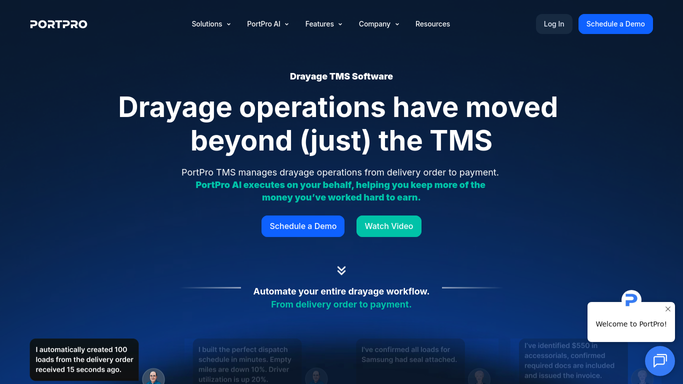
WebRun opens PortPro to read last free day for all open containers. - Open PortPro and navigate to the active import container board
- Read the last free day and current status for every open container
- Calculate days remaining and flag containers expiring in 0, 1, or 2 days as critical
Done when Every open container has a days-remaining figure and an urgency tier.
-
2
Google Sheets - log ranked LFD watchlist
google.com How to Automate Google Sheets
WebRun opens Google Sheets to log ranked LFD watchlist. - Open the LFD Watchlist Google Sheet and clear the previous day's data
- Write today's ranked list with container number, terminal, LFD, days remaining, and urgency tier
- Sort by days remaining ascending so critical containers appear at the top
Done when The watchlist sheet is refreshed with today's data sorted by urgency.

How do I automatically track last free days across all open import containers?
WebRun opens PortPro every morning, reads the last free day for every open import container, and logs a ranked Google Sheets watchlist sorted by days remaining with critical flags for containers expiring within 48 hours, so your dispatch team acts before per-diem charges begin.
- Critical LFD containers flagged every morning before charges begin
- One ranked Google Sheet replaces manual terminal lookups
- Dispatchers prioritize moves by free-time urgency, not gut feel
Built for drayage carriers · port trucking companies · intermodal dispatchers · container logistics managers
How is each run configured?
Secure by default
Connect once, stays signed in
WebRun signs in once and keeps each session in a persistent environment, so every run picks up right where it left off.
Every action is checked against this policy before it runs.
Questions, answered
How does it calculate days remaining if the LFD is not yet confirmed?
It uses the LFD recorded in PortPro. If a container has no confirmed LFD, it is flagged as unconfirmed in the sheet so your team knows to follow up with the terminal.
Can it cover containers across multiple terminals?
Yes. WebRun reads all open import containers in PortPro regardless of which terminal they sit at, so the watchlist covers your full port footprint in one sheet.
Will it notify customers when free time is about to expire?
No. The watchlist is an internal operations tool only. Any customer-facing per-diem or LFD notice is drafted for your review before it is sent.
Related templates
Put this on autopilot.
Turn it on in minutes - or have our team set it up for you.