Draft terminal appointment confirmations for every new PortPro load
Every morning, WebRun opens PortPro, finds new import loads created since the last run that have a terminal appointment booked, and drafts a confirmation email in Gmail for each one so your customer service team can review and send it, keeping customers informed of their pickup appointment.
- No credit card
- Under $0.01 per run
- Cancel anytime
What does WebRun do on every run?
The exact actions WebRun takes, in order - in plain language, so you can adjust anything.
-
WebRun signs in and gets to work
Opens
app.portpro.ioin a real browser with your saved login - no setup, no API keys. -
1
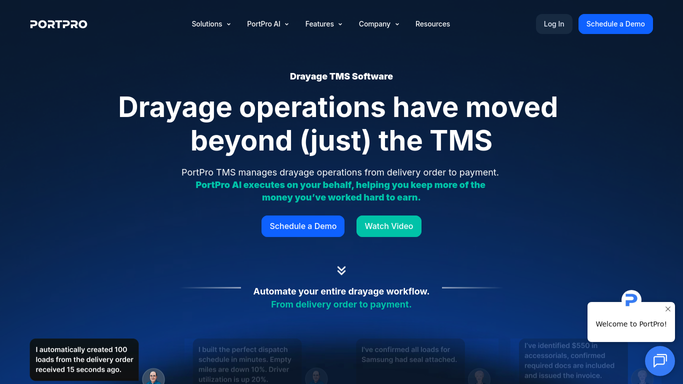
PortPro - find new loads with booked terminal appointments
portpro.io How to Automate PortPro

WebRun opens PortPro to find new loads with booked terminal appointments. - Open PortPro and filter loads created since the previous run with a terminal appointment date on file
- Read the container number, terminal, appointment date and time, and customer contact for each load
- Confirm the appointment has not already been communicated to the customer
Done when Every new load with a terminal appointment has its details ready for the email draft.
-
2
Gmail - draft appointment confirmation email for review
gmail.com How to Automate Gmail
WebRun opens Gmail to draft appointment confirmation email for review. - Open Gmail and compose a draft appointment confirmation to the customer contact on file
- Include container number, terminal name, appointment date and time, and any special instructions
- Leave the draft unsent in the Drafts folder for your customer service team to review and send
Done when A Gmail draft is created for each new load and ready for customer service to review.

How do I automatically draft terminal appointment confirmations for customers from PortPro?
Every morning, WebRun opens PortPro, finds new import loads with a booked terminal appointment, and creates a Gmail draft for each one containing the container number, terminal, and appointment time so your customer service team reviews and sends it. No confirmation goes to a customer without human approval.
- Every new load gets a customer-ready confirmation draft without manual writing
- Customer service team reviews and sends, not drafts from scratch
- No appointment goes uncommunicated when loads are created overnight
Built for drayage carriers · port trucking customer service teams · intermodal logistics coordinators · container import managers
How is each run configured?
Secure by default
Connect once, stays signed in
WebRun signs in once and keeps each session in a persistent environment, so every run picks up right where it left off.
Every action is checked against this policy before it runs.
Questions, answered
Will it send the confirmation email to the customer automatically?
No. WebRun creates a draft in Gmail and leaves it for your customer service team to review and send. No email goes to any customer without a human approving it first.
What if the terminal appointment changes after the draft is created?
If the appointment is updated in PortPro, the next morning run will create a new draft with the corrected details. Your team should discard any outdated drafts when they review.
Can it handle multiple customers on the same run?
Yes. It creates one Gmail draft per new load, so if ten new loads have appointments booked overnight, your customer service team wakes up to ten ready-to-send drafts.
Related templates
Put this on autopilot.
Turn it on in minutes - or have our team set it up for you.