Have next week's activities and class codes ready
Every Monday, WebRun opens Desmos, checks next week's planned activities against each of your classes, collects the class code for everything already assigned, lists what still needs assigning, writes the codes into Google Sheets, and writes the week's plan into Notion.
- No credit card
- Under $0.01 per run
- Cancel anytime
How do I get next week's Desmos activities and class codes ready?
Every Monday, WebRun opens Desmos, checks next week's planned activities against each of your classes, and collects the class codes for the ones already assigned. It writes the codes into Google Sheets and the week's plan into Notion, so every period starts with its activity and code ready.
- Every class code is in one sheet before the week starts
- Classes with no activity assigned are named on Monday morning
- Nothing is published to students without the teacher assigning it
Built for math teachers · department heads · instructional coaches · school coordinators
What does WebRun do on every run?
The exact actions WebRun takes, in order - in plain language, so you can adjust anything.
-
WebRun signs in and gets to work
Opens
www.desmos.comin a real browser with your saved login - no setup, no API keys. -
1
Desmos - line up next week's activities
desmos.com
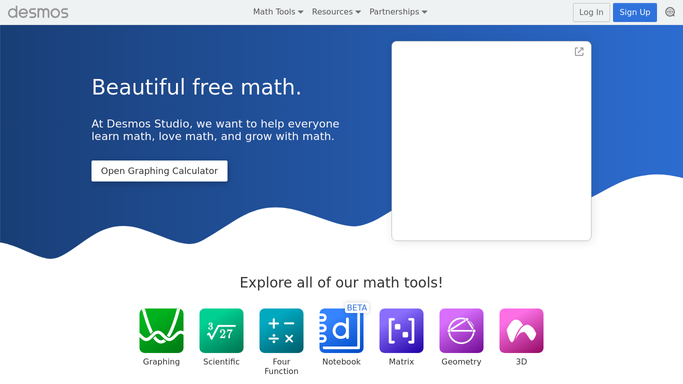
WebRun opens Desmos to line up next week's activities. - Open Desmos and list your classes and the activities planned for next week
- Check each class to see which activity is already assigned to it and which is still missing
- Collect the class code for every activity already assigned
- Check the student roster on each class so a code with nobody attached is spotted
- Look through your collections for the activities still to assign and note the match per class
- Leave the assigning to you. WebRun lists what needs assigning rather than pushing work to students itself
Done when Every class has either a collected code or a named activity waiting to be assigned.
-
2
Google Sheets - collect every class code
google.com How to Automate Google Sheets

WebRun opens Google Sheets to collect every class code. - Write one row per class into your teaching sheet in Google Sheets
- Record the class, the period, the activity, the class code, and the roster size
- Mark rows where the code is missing so they stand out during the Monday check
- Keep last week's rows below, so a code can be found again after the lesson
Done when Every class code for next week is in one sheet, with gaps marked.
-
3
Notion - write the week's plan
notion.so How to Automate Notion
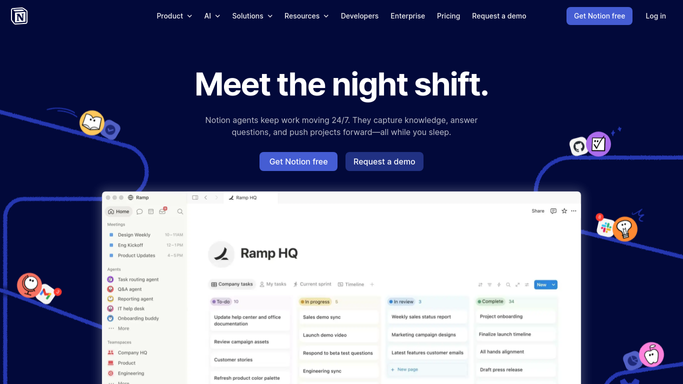
WebRun opens Notion to write the week's plan. - Write next week's plan to your teaching page in Notion, day by day and period by period
- Put the activity name, the class, and the code together on one line
- List what still needs assigning at the top as a short to-do
- Note any class whose roster is empty or much smaller than expected
Done when Next week's teaching plan is in Notion with the outstanding jobs at the top.
How is each run configured?
Secure by default
Connect once, stays signed in
WebRun signs in once and keeps each session in a persistent environment, so every run picks up right where it left off.
Every action is checked against this policy before it runs.
Questions, answered
Will it assign activities to my students on its own?
No. WebRun collects the codes for what you have already assigned and lists what is still missing. Publishing an activity to a class stays your decision, so students never receive work you did not set.
Does it see student work or names?
It reads the roster size to spot an empty class, not individual student work. Answers, scores, and progress are not copied into your sheet or your Notion page.
What if a class has no activity planned yet?
That class appears at the top of the Notion page as an outstanding job with the collection it could come from, so the gap is filled on Monday rather than found mid week.
Related templates
Put this on autopilot.
Turn it on in minutes - or have our team set it up for you.