Turn your Day One session notes into shared client records
Every Friday, WebRun opens Day One, collects journal entries tagged with a client name that were written that week, logs each entry to an Airtable client record tracker with its date and tag, and updates the shared client notes page in Notion, so private session notes turn into a team-visible record without any manual copying.
- No credit card
- Under $0.01 per run
- Cancel anytime
How do I turn Day One client session notes into a shared team record?
WebRun checks Day One every Friday for journal entries tagged with a client name that week, logs each one to an Airtable client record tracker, and updates the shared Notion client notes page, so session notes captured privately turn into a team-visible record without anyone manually retyping what was written.
- Session notes become team-visible without manual retyping
- Every client entry lands in one trackable record
- Notes stay private except for the tags explicitly chosen to sync
Built for Consultants · coaches · therapists in private practice · freelancers
What does WebRun do on every run?
The exact actions WebRun takes, in order - in plain language, so you can adjust anything.
-
WebRun signs in and gets to work
Opens
dayoneapp.comin a real browser with your saved login - no setup, no API keys. -
1
Day One - collect journal entries tagged for a client this week
dayoneapp.com

WebRun opens Day One to collect journal entries tagged for a client this week. - Open entries tagged with a client name
- Collect entries written in the last week
- Note the client tag and date for each
Done when Every client-tagged entry from this week is captured.
-
2
Airtable - log each entry to the client record tracker
airtable.com How to Automate Airtable
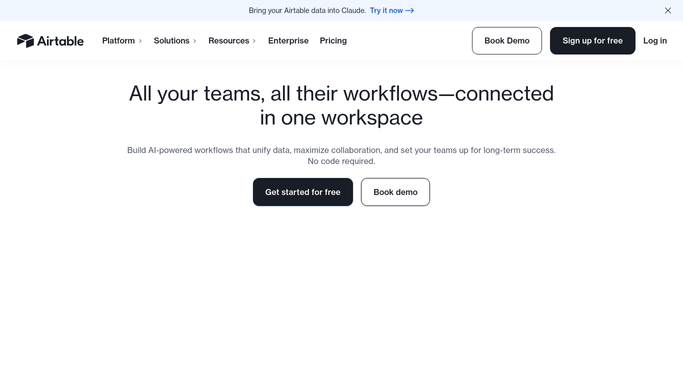
WebRun opens Airtable to log each entry to the client record tracker. - Open the client record tracker base
- Add a record for each entry with its client and date
Done when The tracker reflects every client-tagged entry from this week.
-
3
Notion - update the shared client notes page
notion.so How to Automate Notion
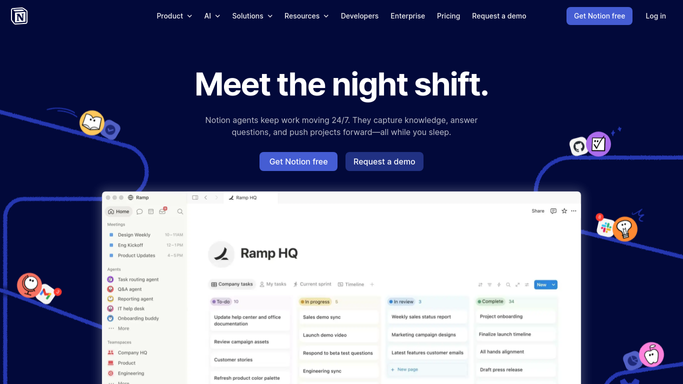
WebRun opens Notion to update the shared client notes page. - Open the shared client notes page
- Add a summary line for each new entry
Done when The client notes page reflects this week's entries.
How is each run configured?
Secure by default
Connect once, stays signed in
WebRun signs in once and keeps each session in a persistent environment, so every run picks up right where it left off.
Every action is checked against this policy before it runs.
Questions, answered
Does WebRun read every journal entry?
No. It only reads entries carrying the client tags you choose to sync. Personal, untagged entries are never touched.
Does it edit or delete entries in Day One?
No. It only reads tagged entries and copies a summary out. Editing or deleting an entry is left entirely to you in Day One.
Who can see the shared client notes page?
Only your own team, in your own Notion workspace. It's never made public or shared with the client themselves.
Related templates
Put this on autopilot.
Turn it on in minutes - or have our team set it up for you.