Hand backlog items to a PM the moment they're ready for spec
Every few minutes, WebRun checks Craft.io for backlog items newly marked ready for spec, saves a brief export with the requirements and linked insights to Google Drive, and texts the owning product manager through Twilio, so a prioritization decision turns into an assigned spec within minutes instead of waiting for the next planning meeting.
- No credit card
- Under $0.01 per run
- Cancel anytime
How do I hand off Craft.io backlog items to a PM automatically?
WebRun watches Craft.io for backlog items marked ready for spec, saves a brief with the requirements and linked customer insights to Google Drive, and texts the owning product manager through Twilio, so a prioritization decision turns into an assigned, spec-ready handoff within minutes instead of waiting for the next planning meeting.
- Ready-for-spec items reach the PM within minutes
- Every handoff comes with requirements already compiled
- No prioritized item waits for the next planning meeting to move
Built for Product managers · product teams · SaaS companies · engineering leads
What does WebRun do on every run?
The exact actions WebRun takes, in order - in plain language, so you can adjust anything.
-
WebRun signs in and gets to work
Opens
craft.ioin a real browser with your saved login - no setup, no API keys. -
1
Craft.io - watch for backlog items marked ready for spec
craft.io
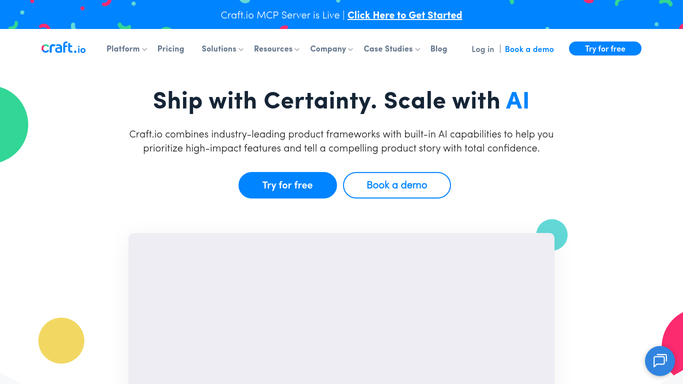
WebRun opens Craft.io to watch for backlog items marked ready for spec. - Check the backlog for items newly marked ready for spec
- Read the requirements and linked customer insights
- Note the assigned product manager
Done when Every newly ready item is captured with its requirements and owner.
-
2
Google Drive - save the spec brief export
drive.google.com How to Automate Google Drive

WebRun opens Google Drive to save the spec brief export. - Export the requirements and insights into a brief
- Save it to the specs folder
Done when A spec brief is saved to Drive for every newly ready item.
-
3
Twilio - text the owning PM
twilio.com How to Automate Twilio

WebRun opens Twilio to text the owning PM. - Look up the owning product manager
- Text them with the item name and a link to the brief
Done when Every owning PM has been texted with their new brief.
How is each run configured?
Secure by default
Connect once, stays signed in
WebRun signs in once and keeps each session in a persistent environment, so every run picks up right where it left off.
Every action is checked against this policy before it runs.
Questions, answered
Does WebRun decide when an item is ready for spec?
No. It only watches for the status your team already sets in Craft.io. Marking something ready for spec is always a human decision.
Does it write the spec itself?
No. It saves a brief with the existing requirements and insights so the PM has everything in one place, but writing the actual spec is left to the PM.
Who gets texted?
Only the internal PM already assigned to the backlog item. It's never sent to a customer or anyone outside the product team.
Related templates
Put this on autopilot.
Turn it on in minutes - or have our team set it up for you.