Catch Concur expense exceptions before approval
Every morning, WebRun scans new SAP Concur expense reports for policy violations, a receipt missing above the required threshold or a spend category over its limit, creates a Trello card on the exceptions board for each one with the employee and amount, and posts a summary to Microsoft Teams for the approver.
- No credit card
- Under $0.01 per run
- Cancel anytime
How do I catch SAP Concur policy exceptions before they reach approval?
WebRun scans new SAP Concur expense reports every morning for policy violations, a missing receipt above your threshold or a category over its limit, and creates a Trello card for each with the employee and amount. It posts a summary to Microsoft Teams so the approver has today's exceptions in one place.
- Policy exceptions are logged the morning a report is submitted, not at month end
- Approvers see a Teams summary instead of hunting through Concur
- The Trello board gives a running record of every exception and its resolution
Built for Finance teams · expense approvers · travel administrators · enterprise controllers
What does WebRun do on every run?
The exact actions WebRun takes, in order - in plain language, so you can adjust anything.
-
WebRun signs in and gets to work
Opens
www.concursolutions.comin a real browser with your saved login - no setup, no API keys. -
1
SAP Concur - scan reports for policy violations
concur.com
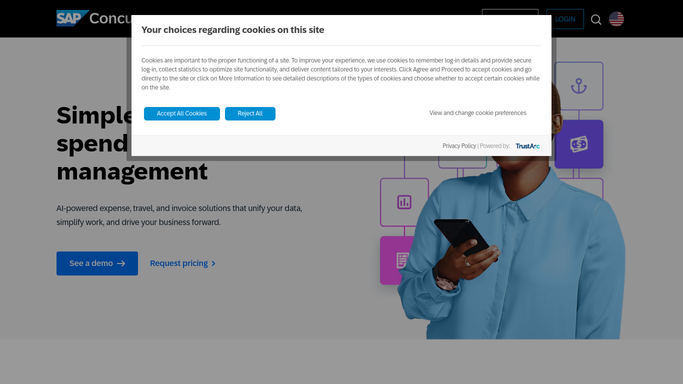
WebRun opens SAP Concur to scan reports for policy violations. - Open SAP Concur and review expense reports submitted overnight
- Flag any missing receipt above the required threshold or an over limit category
- Note the employee, amount, and the specific rule broken
Done when Every new expense report has been checked against policy.
-
2
Trello - log each exception as a card
trello.com How to Automate Trello
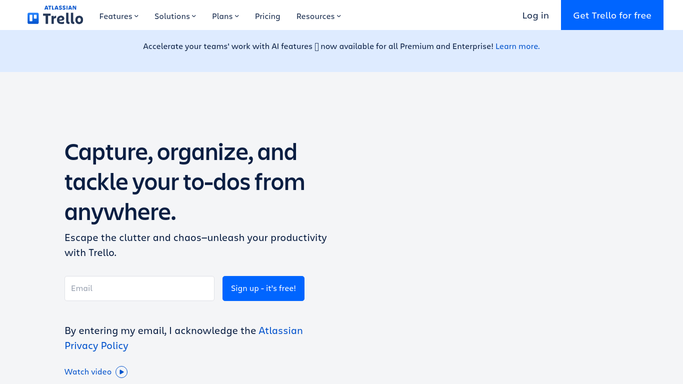
WebRun opens Trello to log each exception as a card. - Create a Trello card for each policy exception on the exceptions board
- Include the employee, amount, and rule broken in the card
- Move cleared items to a done list once resolved
Done when The exceptions board reflects every open policy violation.
-
3
Microsoft Teams - summarize for the approver
microsoft.com How to Automate Microsoft Teams

WebRun opens Microsoft Teams to summarize for the approver. - Post a summary of today's exceptions to the approver's Teams channel
- Group them by employee for a faster review
- Link back to the Trello card for each one
Done when The approver has today's exceptions summarized in Teams.
How is each run configured?
Secure by default
Connect once, stays signed in
WebRun signs in once and keeps each session in a persistent environment, so every run picks up right where it left off.
Every action is checked against this policy before it runs.
Questions, answered
Does it approve or reject the report?
No. WebRun only flags exceptions and logs them to Trello. The approval decision stays inside SAP Concur, made by a person.
What counts as a policy violation?
A missing receipt above your required threshold, or a spend category over its limit, either one gets a card on the exceptions board.
Will the employee see the Trello card?
No. The board and the Teams summary are internal to your approvers. WebRun does not contact the employee directly.
Related templates
Put this on autopilot.
Turn it on in minutes - or have our team set it up for you.