Clear the expense reports waiting on you
Every morning, WebRun opens SAP Concur, reads every expense report sitting in the approval queue, sorts them by how long they have waited and by amount, posts the list to Slack, and sends a Telegram ping for anything past your ageing limit.
- No credit card
- Under $0.01 per run
- Cancel anytime
How do I stop expense reports sitting unapproved in Concur?
WebRun opens SAP Concur every morning and reads every expense report sitting in the approval queue. It posts Slack an oldest-first list with the submitter, amount, and days waited, then sends a Telegram ping for any report past your ageing limit, so nothing sits unapproved for a fortnight.
- Approvers see the queue every morning without opening Concur
- Reports past the ageing limit trigger a direct ping
- Staff get reimbursed without having to chase their manager
Built for finance teams · expense approvers · office managers · controllers
What does WebRun do on every run?
The exact actions WebRun takes, in order - in plain language, so you can adjust anything.
-
WebRun signs in and gets to work
Opens
www.concursolutions.comin a real browser with your saved login - no setup, no API keys. -
1
SAP Concur - read the approval queue
concur.com
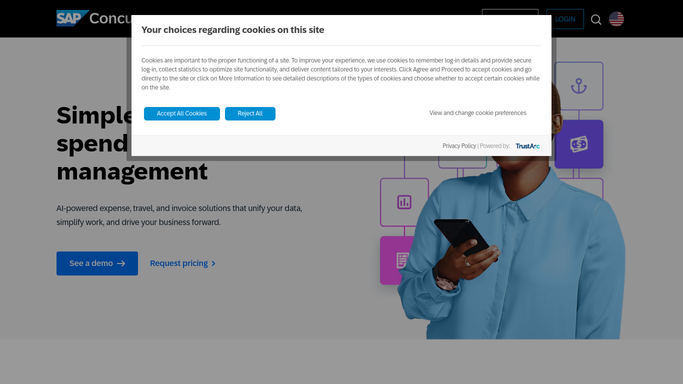
WebRun opens SAP Concur to read the approval queue. - Open SAP Concur and go to the reports awaiting approval
- Capture the submitter, report name, total amount, and submission date for each
- Work out how many working days each report has waited
- Note any report with a missing receipt or an unusually large single line
Done when Every report in the approval queue is listed with its age and amount.
-
2
Slack - post the aged waiting list
slack.com How to Automate Slack

WebRun opens Slack to post the aged waiting list. - Post the waiting list to your finance channel in Slack
- Sort it oldest first so the reports holding people up sit at the top
- Give each line the submitter, the amount, and the days waited
- Close with the total value sitting unapproved and the count of reports
Done when The approval queue is visible in Slack with ages and amounts.
-
3
Telegram - ping on anything overdue
telegram.org How to Automate Telegram

WebRun opens Telegram to ping on anything overdue. - Send a short Telegram message when any report has waited longer than your limit
- Name the submitter, the amount, and the days waited so the message stands alone
- Skip the ping entirely on a day when the queue is inside the limit
- Never approve, reject, or return a report. Approval stays a human decision in Concur
Done when You have a Telegram ping for every report past the ageing limit.
How is each run configured?
Secure by default
Connect once, stays signed in
WebRun signs in once and keeps each session in a persistent environment, so every run picks up right where it left off.
Every action is checked against this policy before it runs.
Questions, answered
Will it approve expense reports for me?
No. WebRun only reads the queue and reports what is waiting. It never approves, rejects, or returns a report, and it never sends anything to the submitter. Every approval decision stays yours inside Concur.
How long before something counts as overdue?
Three working days by default, which is where most expense policies sit. Change it to one day for a fast-moving team or five for a monthly cycle, and the Telegram ping follows the new limit.
Can it split the list by approver?
Yes. When several managers approve, WebRun groups the Slack list under each approver's name so nobody has to scan the whole queue to find the two reports that are theirs.
Related templates
Put this on autopilot.
Turn it on in minutes - or have our team set it up for you.