Spot the students who stopped making progress
Every morning, WebRun opens your Code.org teacher dashboard, checks each section's progress view for students who have not moved past the same lesson in several days or have not signed in at all, records each one in Airtable with how long they have been stuck, and writes a short Notion support list naming who to sit with in your next class.
- No credit card
- Under $0.01 per run
- Cancel anytime
How do I find students who are stuck on a coding lesson?
WebRun checks your Code.org sections every morning for students who have not moved past the same lesson in days or have stopped signing in. It records each one in Airtable with the days stuck, then writes a Notion support list per section naming who to help first and which lesson trapped the whole class.
- Stuck students are named before the next class, not at the end of the unit
- Lessons where a whole section piles up get flagged for reteaching
- Inactive students are separated from stuck ones, so each gets the right response
Built for teachers · computer science educators · school coordinators · coding club leaders
What does WebRun do on every run?
The exact actions WebRun takes, in order - in plain language, so you can adjust anything.
-
WebRun signs in and gets to work
Opens
code.orgin a real browser with your saved login - no setup, no API keys. -
1
Code.org - check progress for stalled students
code.org

WebRun opens Code.org to check progress for stalled students. - Open the Code.org teacher dashboard and go to each of your sections in turn
- Open the progress view and capture where every student currently sits in the course
- Flag students on the same lesson as three or more days ago
- Flag students with no activity at all in the last 7 days
- Note the specific lesson or puzzle where several students in a section have piled up
- Record which students finished the unit, so the list separates stuck from simply ahead
Done when Every section has been checked and each stalled or inactive student is recorded with their lesson and days stuck.
-
2
Airtable - track who is stuck and for how long
airtable.com How to Automate Airtable
WebRun opens Airtable to track who is stuck and for how long. - Open your class tracking base and upsert one row per student, keyed on section and student name
- Fill in current lesson, days on that lesson, last activity date and progress against the section average
- Clear the stuck flag for any student who moved on since the last run
- Add a view grouped by section and sorted by days stuck, longest first
Done when Airtable shows the current stuck count per section with each student's history.
-
3
Notion - write the class support list
notion.so How to Automate Notion
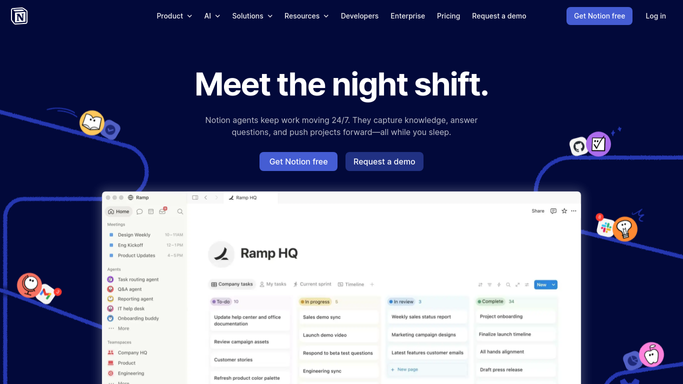
WebRun opens Notion to write the class support list. - Write today's support list in Notion, one section per heading
- Name the students to sit with first and the exact lesson each is stuck on
- Call out any lesson where several students stalled together, since that usually needs reteaching rather than one to one help
- List the inactive students separately so attendance and access problems are handled differently
- Keep everything internal to your workspace. WebRun never emails a student or a parent and never marks work complete
Done when Today's support list is in Notion, grouped by section with the lesson named for each student.
How is each run configured?
Secure by default
Connect once, stays signed in
WebRun signs in once and keeps each session in a persistent environment, so every run picks up right where it left off.
Every action is checked against this policy before it runs.
Questions, answered
Will it message students or parents?
No. Everything WebRun writes stays inside your own Airtable and Notion workspace. It never emails a student, never contacts a parent and never marks an assignment complete. The teaching conversation stays with you.
How does it tell stuck from just working slowly?
It looks at movement, not speed. A student on the same lesson three or more days after the last check is flagged, and a student with no activity for 7 days is listed separately as inactive rather than stuck.
Can it show when a whole class is struggling?
Yes. When several students in one section stall on the same lesson, the Notion list calls that lesson out separately, because a pile-up usually means the lesson needs reteaching rather than individual help.
Related templates
Put this on autopilot.
Turn it on in minutes - or have our team set it up for you.