Know every stream destination is connected before you go live
Every morning, WebRun opens Castr, walks each live stream and the multistream destinations attached to it, confirms every platform is still connected and the stream key and recording setting are in place, alerts you in Telegram about anything disconnected, and files the preflight log in Google Drive.
- No credit card
- Under $0.01 per run
- Cancel anytime
How do I check my streaming destinations before going live?
WebRun runs a preflight check on your Castr streams every morning. It walks each stream and its multistream destinations, confirms every platform is still connected and the stream key and recording setting are in place, alerts you in Telegram about anything dropped, and files the log in Google Drive.
- A dropped platform is caught before the broadcast, not during it
- Every stream key and recording setting is confirmed each morning
- A running Drive log shows which platform drops most often
Built for live producers · streamers · churches · event teams
What does WebRun do on every run?
The exact actions WebRun takes, in order - in plain language, so you can adjust anything.
-
WebRun signs in and gets to work
Opens
castr.ioin a real browser with your saved login - no setup, no API keys. -
1
Castr - check every destination
castr.io
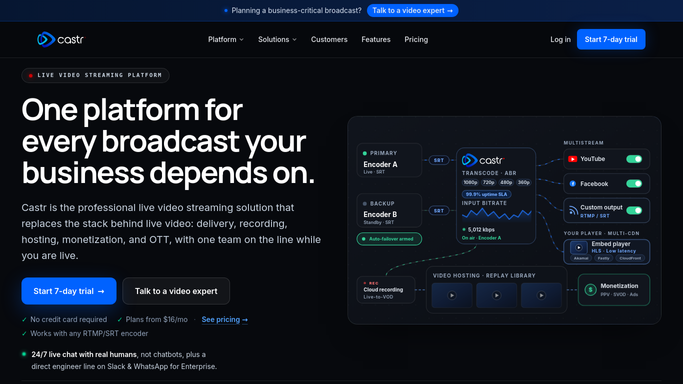
WebRun opens Castr to check every destination. - Open Castr and go to each live stream you plan to broadcast
- Check every multistream destination attached to it and note whether the platform connection is still active
- Confirm the stream key is present and the recording setting matches what you expect for the broadcast
Done when Every destination on every stream is marked connected or disconnected.
-
2
Telegram - alert on a dropped platform
telegram.org How to Automate Telegram

WebRun opens Telegram to alert on a dropped platform. - Send an alert naming any destination that is disconnected or needs reauthorizing
- Include the stream it belongs to and the platform involved
- When every destination is healthy, send one short all clear line instead of a report
Done when You know before the broadcast whether any platform connection has dropped.
-
3
Google Drive - file the preflight log
drive.google.com How to Automate Google Drive

WebRun opens Google Drive to file the preflight log. - Append today's preflight result to the log file in your broadcast folder
- Record each stream, each destination, and its status with the time of the check
- Keep the running history so a platform that drops repeatedly is easy to spot
Done when Today's preflight result is filed in Google Drive alongside the history.
How is each run configured?
Secure by default
Connect once, stays signed in
WebRun signs in once and keeps each session in a persistent environment, so every run picks up right where it left off.
Every action is checked against this policy before it runs.
Questions, answered
Will it start or stop a stream?
No. WebRun only reads the configuration. It never goes live, ends a broadcast, deletes a recording, or changes a stream key, so a check can never take you off air.
What happens when a platform needs reconnecting?
You get a Telegram alert naming the stream and the platform, so you can reauthorize it yourself in Castr before the broadcast rather than hearing about it from viewers.
Does it alert when everything is fine?
It sends one short all clear line. That way a silent morning never leaves you wondering whether the check ran at all.
Related templates
Put this on autopilot.
Turn it on in minutes - or have our team set it up for you.