Build a daily worklist of failed and noncompliant backflow devices
Every morning, WebRun opens SwiftComply, finds all backflow devices that failed their most recent test or are flagged as noncompliant, builds a prioritized worklist in Google Sheets sorted by hazard level and days since failure, and sends a summary alert to the compliance team's Telegram group so nothing waits for someone to run a manual report.
- No credit card
- Under $0.01 per run
- Cancel anytime
What does WebRun do on every run?
The exact actions WebRun takes, in order - in plain language, so you can adjust anything.
-
WebRun signs in and gets to work
Opens
app.swiftcomply.comin a real browser with your saved login - no setup, no API keys. -
1
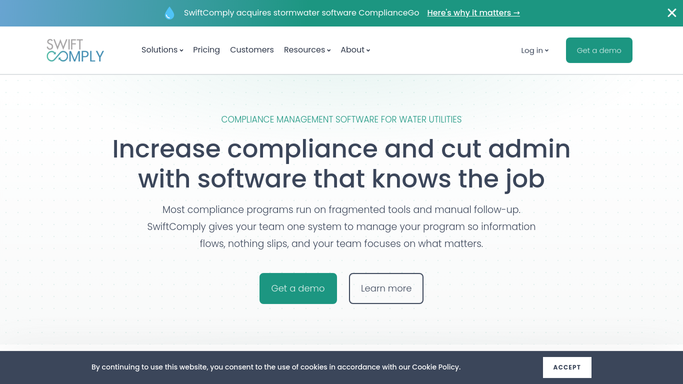
SwiftComply - find failed and noncompliant devices
swiftcomply.com How to Automate SwiftComply

WebRun opens SwiftComply to find failed and noncompliant devices. - Open SwiftComply and filter test reports to those with a Failed result and no subsequent passing test
- Also pull devices in a noncompliant or overdue status with no test submitted in the required window
- Capture the property address, device type, hazard classification, failure date, and the number of days since the failure for each
- Sort results by hazard level, high-hazard first, then by days since failure
Done when Every failed and noncompliant device is listed with full details and sorted by priority.
-
2
Google Sheets - build and update the repair worklist
google.com How to Automate Google Sheets
WebRun opens Google Sheets to build and update the repair worklist. - Open the failed-device worklist sheet
- Upsert a row for each device: address, hazard class, failure date, days open, assigned tester, and follow-up status
- Mark new failures added today so the team can spot what is new versus what was already known
- Archive devices that have received a subsequent passing test and are back in compliance
Done when The worklist is updated with all current failures and noncompliant devices, with new entries highlighted.
-
3
Telegram - alert compliance team to new failures
telegram.org How to Automate Telegram
WebRun opens Telegram to alert compliance team to new failures. - Send a morning digest to the compliance team Telegram group with the count of open failures
- Include the top 5 most urgent devices by hazard level and days open
- Link to the Google Sheets worklist for the full list
Done when Compliance team has today's failure count and top-priority devices in Telegram.


How do I automatically track failed and noncompliant backflow devices?
WebRun scans SwiftComply every morning for backflow devices with failed tests or noncompliant status, builds a prioritized Google Sheets worklist sorted by hazard level and days since failure, and sends a morning digest to your compliance team via Telegram. The team starts each day knowing exactly which repairs are most urgent, without running a single manual report.
- Compliance teams start every day with a ranked list of open failures and noncompliant devices
- High-hazard devices are always surfaced first so critical repairs are never buried
- Devices returning to compliance are automatically archived, keeping the worklist accurate
Built for water utility compliance teams · backflow testing companies · municipal cross-connection control programs · plumbing contractors managing device inventories
How is each run configured?
Secure by default
Connect once, stays signed in
WebRun signs in once and keeps each session in a persistent environment, so every run picks up right where it left off.
Every action is checked against this policy before it runs.
Questions, answered
Does it notify the property owner about the failed device?
No. WebRun only updates the internal Google Sheets worklist and posts a digest to your team's Telegram group. Any customer-facing notice about a device failure is drafted by your compliance coordinator and reviewed before sending.
How does it prioritize the worklist?
Devices are sorted first by hazard classification, with high-hazard assemblies at the top, then by the number of days since the failure. The oldest, highest-risk failures appear first so the team focuses on the most critical repairs.
What happens when a failed device passes a retest?
When SwiftComply shows a subsequent passing test for a device, WebRun moves that row to an archived tab in the Google Sheets worklist and removes it from the active failure list on the next morning's run.
Related templates
Put this on autopilot.
Turn it on in minutes - or have our team set it up for you.