How to Automate Copper
Inside Google Workspace, Copper's task automation (Basic plan and up) and workflow automation (Professional and up) act on changes to its own records, and native integrations or Zapier bring in systems that connect. A client's purchase order or a crew booking reaches the record by hand, unless a browser-based AI agent such as WebRun copies it across.
 Written by
Samuel Adeyemi
Integrations writer
Written by
Samuel Adeyemi
Integrations writer
 Reviewed by
Dimitri Vasilev
Logistics analyst
Reviewed by
Dimitri Vasilev
Logistics analyst
A client's emails and meetings land on its Copper record from Gmail
Copper, which began life as ProsperWorks, is a CRM for small and mid-sized service businesses whose work with a client starts in an email thread and runs for months: agencies, consultancies, commercial production companies, construction firms, financial advisers. It lives in Google Workspace. Emails, calendar events and files log against the person and the deal without anyone filing them, and the Chrome extension shows the record in a panel beside Gmail, Calendar, Meet and LinkedIn, so an account lead can move an opportunity or set a task without leaving the inbox.
Next to the sales pipeline, Copper keeps project pipelines for delivery, from the Basic plan up. A won opportunity becomes a project with its own stages and tasks, linked back to the deal it came from, and the account team that pitched the work follows it through delivery and on to the renewal.
Purchase orders and timesheets reach the Copper record by hand
Before an agency books a kickoff, the account director signs in to the client's supplier portal, looks for the purchase order and, once it is issued, types the PO number into the opportunity. On Fridays the project manager totals the week's hours from the time tracker and sets them against each retainer to see which accounts are running over.
On the new-business side, a tender re-issued on a procurement site with a new deadline changes the opportunity only if the new-business lead happens to look. At a commercial production company, the producer opens the crew booking system before each client call and retypes who is confirmed into the opportunity's notes. Copper meanwhile shows a won deal with no PO number, and a retainer that looks healthy until the month closes.
Copper's automations fire on changes to Copper records
Task automation, from the Basic plan, creates a task when something happens in Copper, such as a contact being created, a stage changing or a record going untouched for the number of days you choose. Workflow automation, from Professional, creates or updates any Copper record, projects included, when a record is created or a field changes, or on a once-a-day check, so a won opportunity can open its own project in the delivery pipeline. Emails go out only through email automation: single emails on Professional, series on Business.
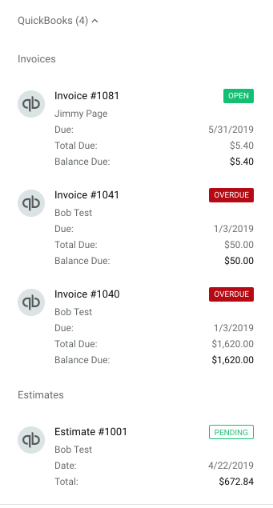
Native integrations, on Professional and Business, bring other systems onto the record. QuickBooks Online invoices appear in the Related section with their status and balance, Zendesk tickets show on the related records, and Mailchimp adds each contact's sends, opens and clicks once a day. On every plan, Zapier connects Copper to more than 5,000 other apps. In the Feed, the Keep Things Moving list points to emails awaiting a reply and meetings to prepare for.
The purchase order sits on the client's supplier portal until the account director signs in and reads it, and the crew list sits in the booking system until the producer does.
The kickoff task waits for the client's purchase order
On a won opportunity, custom fields carry the PO number and its status from the client's supplier portal, as of that morning, and the kickoff task appears on the project the day the PO shows as issued. Each retainer project shows the month's hours from the time tracker beside the agreed total, refreshed every Friday. An account running over gets a task for the account director in the second week of the month, before the overrun reaches the invoice.
The producer opens the opportunity before a client call and reads who is confirmed, copied from the crew booking system that morning. A tender re-issued with a new deadline moves the close date on the opportunity it belongs to, and the new-business lead sees the change in that opportunity's activity.
A construction firm bidding on public work can keep each addendum the owner posts to the bid portal listed on the opportunity, so the estimator prices the current drawings.
Supplier portals and timesheets can feed Copper's custom fields
Keeping those custom fields current takes a sign-in to the client's supplier portal every morning and to the time tracker every Friday. WebRun is an AI agent that works a real Chrome browser, signed in as you; it makes both visits, picks up the crew list from the booking system, and updates the opportunity's custom fields and the project's tasks to match.
A check-in email to a quiet client stays in the account lead's Gmail drafts, unsent. The Gmail thread itself is left to Copper's own sync, which logs it already.
Of the Copper jobs ready to run, one gives each won opportunity a Drive folder and a kickoff card; the others draft check-ins to contacts gone quiet and text a deal's owner when a large deal stalls.
Questions people ask
Will it duplicate what the Gmail sync already logs?
No. Emails, calendar events and files that pass through Google Workspace already reach Copper, so the agent leaves them alone and adds only what sits in tools outside it.
Does the Mailchimp integration already cover newsletter clicks?
Yes, on Professional and Business. Mailchimp's sends, opens and clicks show on the person's record, synced once a day, so the agent leaves them to the integration. It helps with an email platform Copper has no integration for, or on Basic, where native integrations are not included.
Does it update projects as well as opportunities?
Yes. Projects are Copper records with their own pipeline, and the agent adds a task to one, fills a field or moves it to a stage you allow, based on the time tracker or the client's portal.
Can a project open by itself once the PO arrives?
On Professional and Business, yes, and Copper can do that part itself: the agent fills the PO status field, and a workflow automation rule creates the project when the field reads Issued. On Basic, which has no workflow automation, the agent adds the kickoff task to the project itself.
Sources
- Copper llms.txt Copper's own summary: a CRM for small to mid-sized, service-based businesses built into Gmail, Calendar and Drive, with project management tied to sales pipelines and a Chrome extension across Gmail, Calendar, Meet and LinkedIn.
- Chapter 5: Automating your processes | Copper Help Center Describes task, workflow and email automations, their triggers such as Contact Created, Stage Changed and Inactive for X Days, and that emails can only be sent by email automations.
- Copper Plans: Feature Comparison | Copper Help Center Task automation and project pipelines from Basic; workflow automation, single-email automation, native integrations (QuickBooks, Zendesk, Mailchimp, Slack, DocuSign), team permissions and the API from Professional; email series on Business; Zapier from Starter.
- Automating your Account with Workflow Automation | Copper Help Center Workflow automation triggers (created, updated or created, a specific field updated, once a day) and the record types it can create or update, projects included.
- Copper pricing Plan cards for Basic, Professional and Business, and the comparison rows for QuickBooks invoice status, Zendesk tickets and Zapier's 5,000+ apps.
- Mailchimp Integration | Copper Help Center Requires the Professional or Business plan; one-way or two-way sync; the last 50 Mailchimp activities, including sends, opens and clicks, on the record, with the activity sync run once a day.
- Mailchimp field syncing and mapping | Copper Help Center Explains that fields and tags sync from Copper to and from Mailchimp.
- QuickBooks Integration | Copper Help Center QuickBooks Online invoices and estimates in the Related section of leads, people, companies and opportunities, with status, due date, total and balance due.
- Using the Copper Feed | Copper Help Center The Feed's Keep Things Moving section recommends upcoming tasks to complete, emails to follow up on and meetings to prepare for.
- Agency CRM | Copper Automatic logging of emails, calendar events and files from Gmail, separate project pipelines for delivery, and Copper's industry pages for consulting, commercial production, construction and financial services.
- Hello, Copper | Copper Copper's July 2018 post announcing that ProsperWorks is now Copper.
3 ready-made Copper workflows
Each one names the apps it touches and the exact steps it takes. Open one to read what it will do, then turn it on.
Want one of these running on your own Copper?
Show WebRun the process once and it will run it on schedule, in your own private browser environment.