Audit accessorial charges against actual yard activity records
Every Monday, WebRun pulls accessorial charge line items from carrier invoices in QuickBooks, matches each charge against actual gate, dock, and dwell activity in YardView, flags any charge that has no supporting yard record, and writes a dispute-ready audit list to Google Sheets for your finance team to review.
- No credit card
- Under $0.01 per run
- Cancel anytime
What does WebRun do on every run?
The exact actions WebRun takes, in order - in plain language, so you can adjust anything.
-
WebRun signs in and gets to work
Opens
quickbooks.intuit.comin a real browser with your saved login - no setup, no API keys. -
1
QuickBooks - pull accessorial line items from carrier invoices
- Open QuickBooks and filter vendor bills for freight carrier invoices received this week
- Extract all accessorial charge line items: lumper fees, detention, fuel surcharges, layover, and redelivery
- Note the charge type, amount, carrier, and referenced load or shipment number for each line
Done when All accessorial line items from this week's carrier invoices are captured with type, amount, and load reference.
-
2
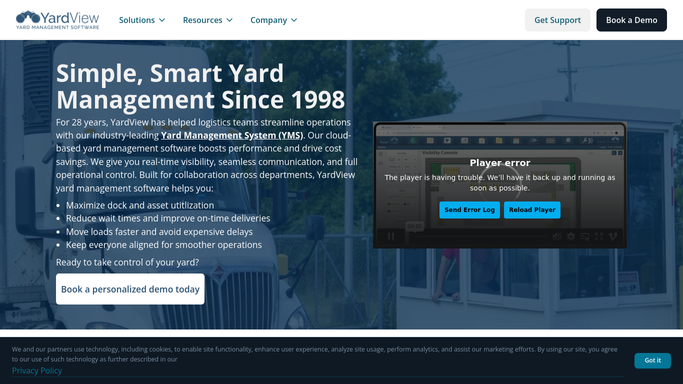
YardView - match charges against actual yard activity logs
yardview.com How to Automate YardView

WebRun opens YardView to match charges against actual yard activity logs. - Open YardView and look up the activity record for each referenced load
- Verify whether the yard data supports the charge: check dwell time for detention, gate log for layover, and move records for redelivery
- Flag any charge where the YardView activity record does not match or is missing
Done when Every accessorial charge is marked as supported or flagged as unsupported based on YardView activity records.
-
3
Google Sheets - write dispute-ready audit list
google.com How to Automate Google Sheets
WebRun opens Google Sheets to write dispute-ready audit list. - Open the accessorial audit sheet and append a section for this week's review
- List all flagged charges with carrier, charge type, amount, and the reason for the flag
- Separate supported charges in a second section so finance has a complete picture for approval
Done when The accessorial audit sheet has this week's flagged and supported charges ready for finance team review.

How do I automatically audit accessorial charges on carrier invoices against my yard activity records?
Every Monday, WebRun pulls accessorial line items from carrier invoices in QuickBooks, matches each charge against gate, dock, and dwell records in YardView, and writes a dispute-ready Google Sheet audit listing every unsupported charge with the evidence gap. Finance teams review before any dispute is filed.
- Unsupported accessorial charges are flagged before payment, not after
- Finance team has a dispute-ready audit list in Google Sheets every Monday morning
- YardView activity evidence is matched to each flagged charge automatically
Built for freight finance teams · logistics controllers · accounts payable managers · 3PL billing auditors
How is each run configured?
Secure by default
Connect once, stays signed in
WebRun signs in once and keeps each session in a persistent environment, so every run picks up right where it left off.
Every action is checked against this policy before it runs.
Questions, answered
Does it dispute charges with carriers automatically?
No. The audit list is prepared in Google Sheets for your finance team to review. Any dispute communication must be initiated and sent by your team after reviewing the flagged charges.
Which accessorial charge types does it check?
It checks detention, lumper fees, fuel surcharges, layover, and redelivery charges by default. You can add other charge types in your WebRun setup if your carriers invoice additional categories.
What counts as a supported charge in YardView?
For detention, the YardView dwell time must exceed the free-time threshold. For layover, a gate log must show the driver waited overnight. For redelivery, a second move record must exist. WebRun applies these rules automatically.
Related templates
Put this on autopilot.
Turn it on in minutes - or have our team set it up for you.