Run the setup checklist for every new Weld data model
When a new transformation project starts, WebRun opens Weld, works through the setup checklist from connecting sources to scheduling the model run, tracks each step's completion in Notion, and logs every connected source to Airtable, so the data team has a clear, searchable record of what feeds the new model and when it runs.
- No credit card
- Under $0.01 per run
- Cancel anytime
How do I track the setup checklist for a new Weld data model?
WebRun works through the Weld setup checklist for every new transformation project, from connecting sources to scheduling the run, tracking each step in Notion. It also logs every connected source to Airtable, so the data team has a clear, searchable record of what feeds each model and when it runs.
- Every new model follows the same repeatable setup checklist
- Blocked steps get flagged with a reason instead of silently stalling
- The team gets a searchable source record without opening Weld
Built for Data engineering teams · Analytics engineers · Data platform teams · Startups
What does WebRun do on every run?
The exact actions WebRun takes, in order - in plain language, so you can adjust anything.
-
WebRun signs in and gets to work
Opens
weld.appin a real browser with your saved login - no setup, no API keys. -
1
Weld - work through the model setup
weld.app
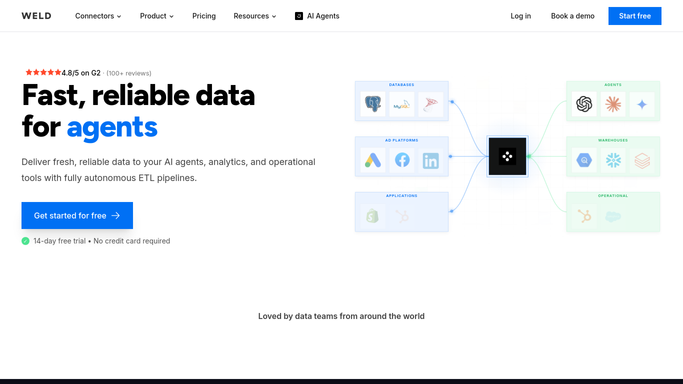
WebRun opens Weld to work through the model setup. - Open Weld and connect the sources the new model needs
- Build and test the transformation
- Set the run schedule for the model
Done when Every setup step has been completed for the new model.
-
2
Notion - track setup progress
notion.so How to Automate Notion
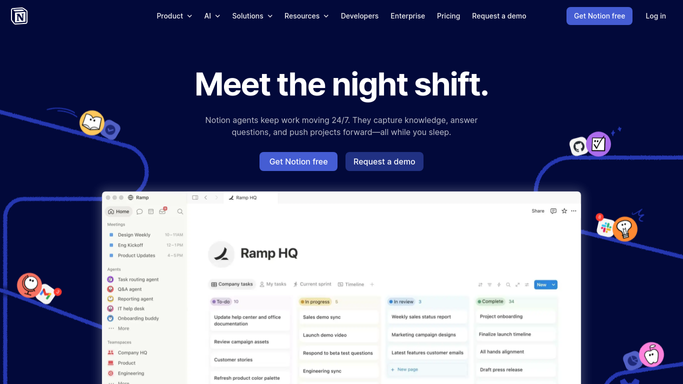
WebRun opens Notion to track setup progress. - Create a setup page for the new model
- Check off each step as it completes
- Note any step that is blocked and why
Done when The Notion page reflects the model's current setup status.
-
3
Airtable - log the connected sources
airtable.com How to Automate Airtable
WebRun opens Airtable to log the connected sources. - Log each connected source with its type and refresh frequency
- Add a row summarizing the model's schedule
- Keep prior models' rows in place below
Done when The new model's sources are logged in the tracker.
How is each run configured?
Secure by default
Connect once, stays signed in
WebRun signs in once and keeps each session in a persistent environment, so every run picks up right where it left off.
Every action is checked against this policy before it runs.
Questions, answered
Does WebRun design the transformation logic itself?
No. It works through the setup checklist and tracks progress. Writing the actual transformation logic stays with your data team.
What happens if a source connection fails during setup?
The step is marked blocked in Notion with the reason, so the team knows exactly what needs fixing before setup can continue.
Can we see what feeds a model without opening Weld?
Yes. Every connected source and its refresh frequency gets logged to Airtable, so anyone can check what feeds a model without a Weld login.
Related templates
Put this on autopilot.
Turn it on in minutes - or have our team set it up for you.