Prepare your monthly box shipment batch without the manual work
Before each monthly fulfilment run, WebRun opens Subbly, collects all active subscribers due to receive a box this cycle, tallies the required stock by product, and sends a formatted shipment preparation digest to your warehouse Telegram group so the team can start packing.
- No credit card
- Under $0.01 per run
- Cancel anytime
What does WebRun do on every run?
The exact actions WebRun takes, in order - in plain language, so you can adjust anything.
-
WebRun signs in and gets to work
Opens
subbly.co/managein a real browser with your saved login - no setup, no API keys. -
1
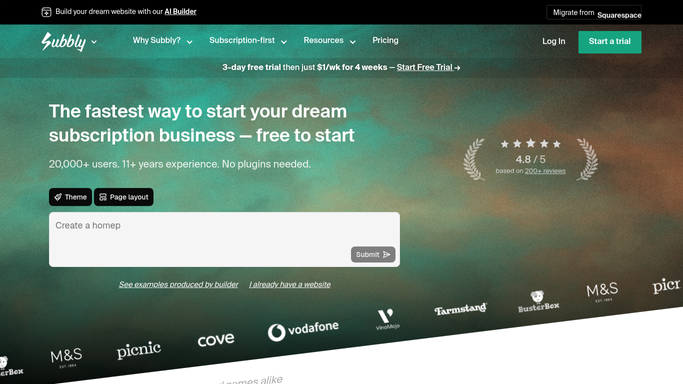
Subbly - collect active subscribers and box contents for this cycle
subbly.co How to Automate Subbly

WebRun opens Subbly to collect active subscribers and box contents for this cycle. - Open Subbly and navigate to Subscribers
- Filter to active subscribers scheduled for fulfilment in this billing cycle
- Collect each subscriber's name, shipping address, plan type, and any customisation or add-on selections
- Tally the total units required per product across all active boxes for this cycle
Done when A complete shipment list is ready with subscriber details and total unit counts per product.
-
2
Telegram - send the shipment batch digest to the warehouse team
telegram.org How to Automate Telegram
WebRun opens Telegram to send the shipment batch digest to the warehouse team. - Send a formatted digest to the warehouse Telegram group listing total boxes to ship, broken down by plan type
- Include a product-level unit tally so the team knows exactly what to pick and pack
- List any customisations or special notes per subscriber segment
Done when The warehouse team has received the full shipment batch digest in Telegram.

How do I automatically prepare a shipment batch list for my monthly subscription box fulfilment?
Before each monthly fulfilment run, WebRun opens Subbly, collects every active subscriber scheduled for this cycle, tallies the total units required per product, and sends a formatted batch digest to your warehouse Telegram group. Your team gets a clear pick-and-pack list without anyone having to export or count manually.
- Warehouse team gets a complete pick-and-pack list before each fulfilment run
- Product unit counts are tallied automatically across all active subscribers
- Multiple plan types are broken down separately so each segment is clear
Built for subscription box fulfilment teams · subscription warehouse managers · subscription box operators
How is each run configured?
Secure by default
Connect once, stays signed in
WebRun signs in once and keeps each session in a persistent environment, so every run picks up right where it left off.
Every action is checked against this policy before it runs.
Questions, answered
Does it create shipping labels or submit orders to a courier?
No. WebRun prepares and delivers the batch digest for your team. Generating shipping labels or submitting orders to a courier is a separate step your team controls.
What if a subscriber paused or cancelled after the digest was sent?
The digest reflects the Subbly subscriber list at the time of the run. If a subscriber pauses or cancels after the digest is sent, your team should cross-check against Subbly before final packing.
Can it handle multiple box types in one digest?
Yes. If you run multiple plan types in Subbly, the digest breaks down the total count and product requirements by plan type so your warehouse knows exactly what each segment receives.
Related templates
Put this on autopilot.
Turn it on in minutes - or have our team set it up for you.