Know which data loads failed overnight
Every morning, WebRun opens Snowflake, reviews last night's task history and data load history for failed and skipped runs, notes which tables did not refresh and how long the successful jobs took, saves the full report as a dated file in Google Drive, and drafts the data team an email in Gmail that leads with what broke and what is now stale.
- No credit card
- Under $0.01 per run
- Cancel anytime
How do I find out which Snowflake data loads failed overnight?
WebRun reviews Snowflake task and load history every morning, finding the jobs that failed, were skipped or ran far longer than usual overnight. It saves a dated report to Google Drive listing each error and the downstream tables now stale, then drafts the data team a Gmail summary for a human to send.
- The team knows which tables are stale before the first dashboard opens
- Repeat failures show a night count, not a fresh surprise each morning
- Every run report is filed by date so a bad week is traceable
Built for data engineers · analytics teams · BI managers · platform teams
What does WebRun do on every run?
The exact actions WebRun takes, in order - in plain language, so you can adjust anything.
-
WebRun signs in and gets to work
Opens
app.snowflake.comin a real browser with your saved login - no setup, no API keys. -
1
Snowflake - review overnight task history
snowflake.com
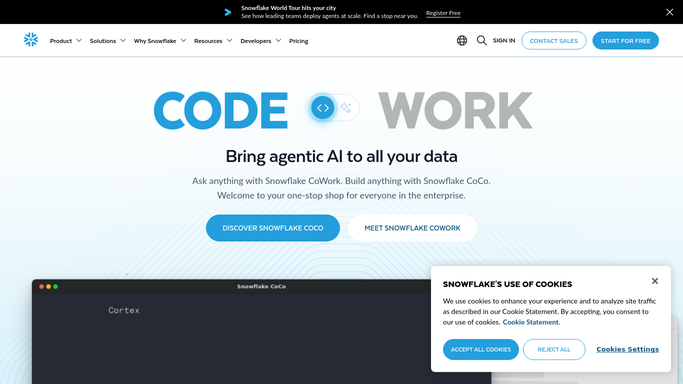
WebRun opens Snowflake to review overnight task history. - Open Snowflake and review the task history for the last 24 hours
- Capture every task that failed, was skipped or is still running past its usual window
- Record the error message, the database, schema and target table for each failure
- Check the load history for files that failed to copy in and note the counts
- Compare each successful task's duration against its recent average and flag anything that ran far longer
- List the downstream tables now stale because an upstream task did not complete
Done when Every failed, skipped or unusually slow task from last night is listed with its error and its stale downstream tables.
-
2
Google Drive - file the run report
drive.google.com How to Automate Google Drive

WebRun opens Google Drive to file the run report. - Save the full report as a dated file in your data operations folder in Google Drive
- Include the complete failure list, error messages, durations and the stale table list
- Keep the file naming consistent so a month of reports sorts by date
- Leave older reports in place so you can trace a recurring failure back through the week
Done when Today's dated run report exists in Google Drive.
-
3
Gmail - draft the team summary
gmail.com How to Automate Gmail

WebRun opens Gmail to draft the team summary. - Draft an email to the data team leading with the count of failures and the tables now stale
- Give each failure one line: task name, target table, error and how many nights in a row it has failed
- Link the Google Drive report for the full detail
- Leave the email as a draft for a human to review and send. WebRun never runs a query, never resumes a task and never sends the mail on its own
Done when A ready-to-send summary email sits in Gmail drafts for review.
How is each run configured?
Secure by default
Connect once, stays signed in
WebRun signs in once and keeps each session in a persistent environment, so every run picks up right where it left off.
Every action is checked against this policy before it runs.
Questions, answered
Will it re-run failed tasks or execute queries?
No. WebRun reads task history and load history and reports what it found. Resuming a task, re-running a load and executing any query stay with your data team, because they consume credits and change data.
Does it email the team without me?
No. The summary is left as a Gmail draft for a human to read and send. Nothing leaves your account until someone reviews the failure list and clicks send.
How does it know which tables are stale?
It maps each failed task to the target table it should have refreshed, then lists the downstream tables that depend on it, so the report says what data people should not trust this morning.
Related templates
Put this on autopilot.
Turn it on in minutes - or have our team set it up for you.